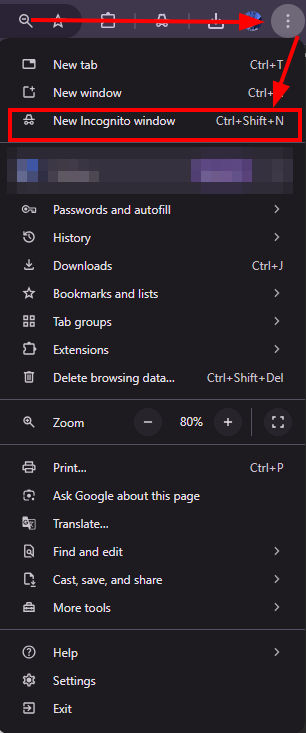
Since the Google Chrome browser is specifically recommended for using the student platform, we will show how to clear the browser cache using it as an example.
Method 1. Complete cache clearing with a hard reload.
Open the developer console by pressing the F12 key or the key combination Ctrl+Shift+i (in the screenshot below it is located on the right) :
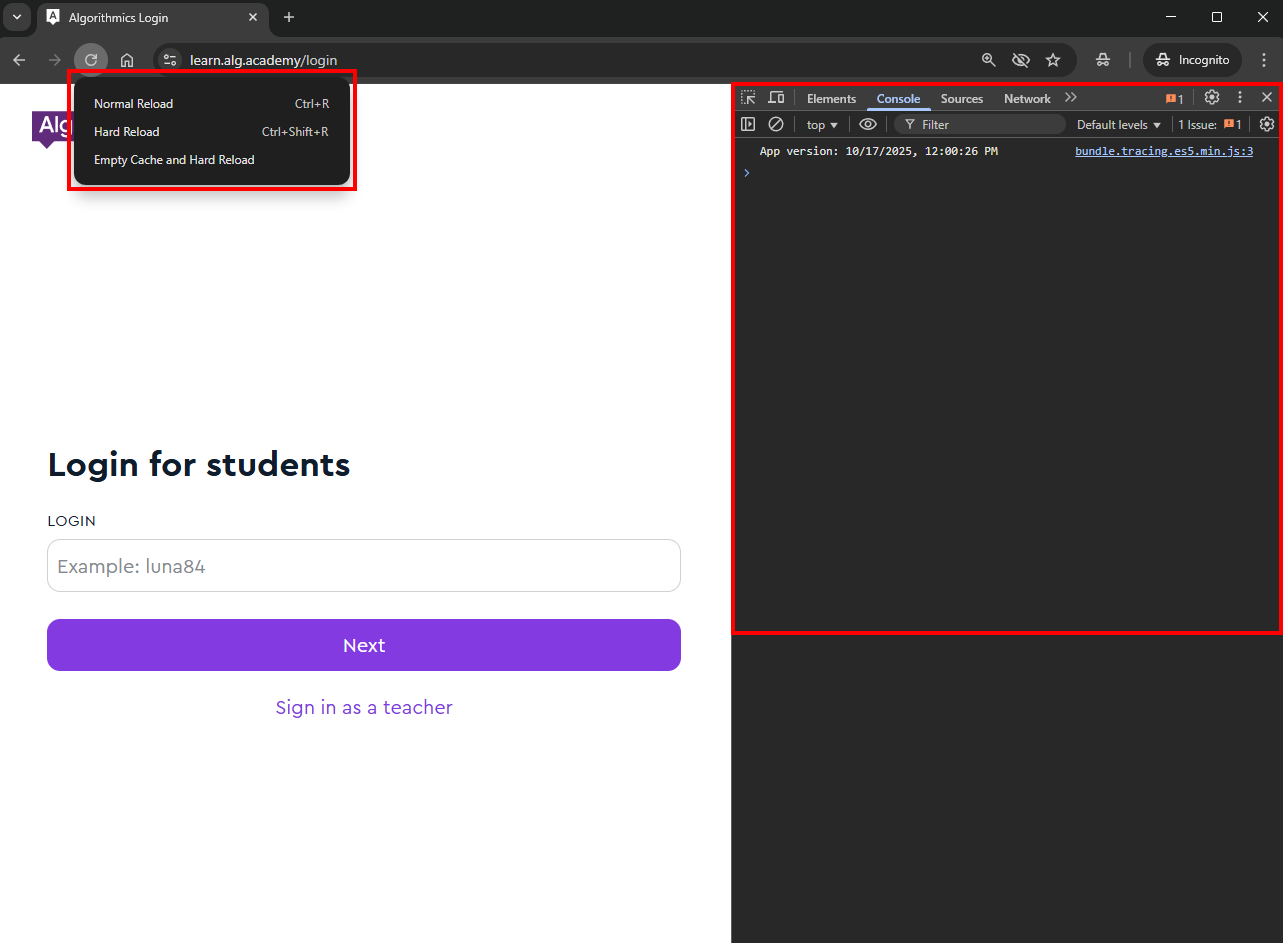
Right-click on the page refresh icon
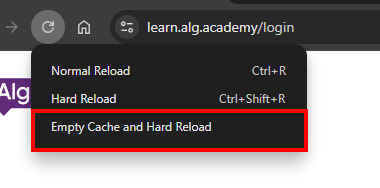
In the context menu that appears, select the Empty Cache and Hard Reload item
Method 2. Complete clearing.
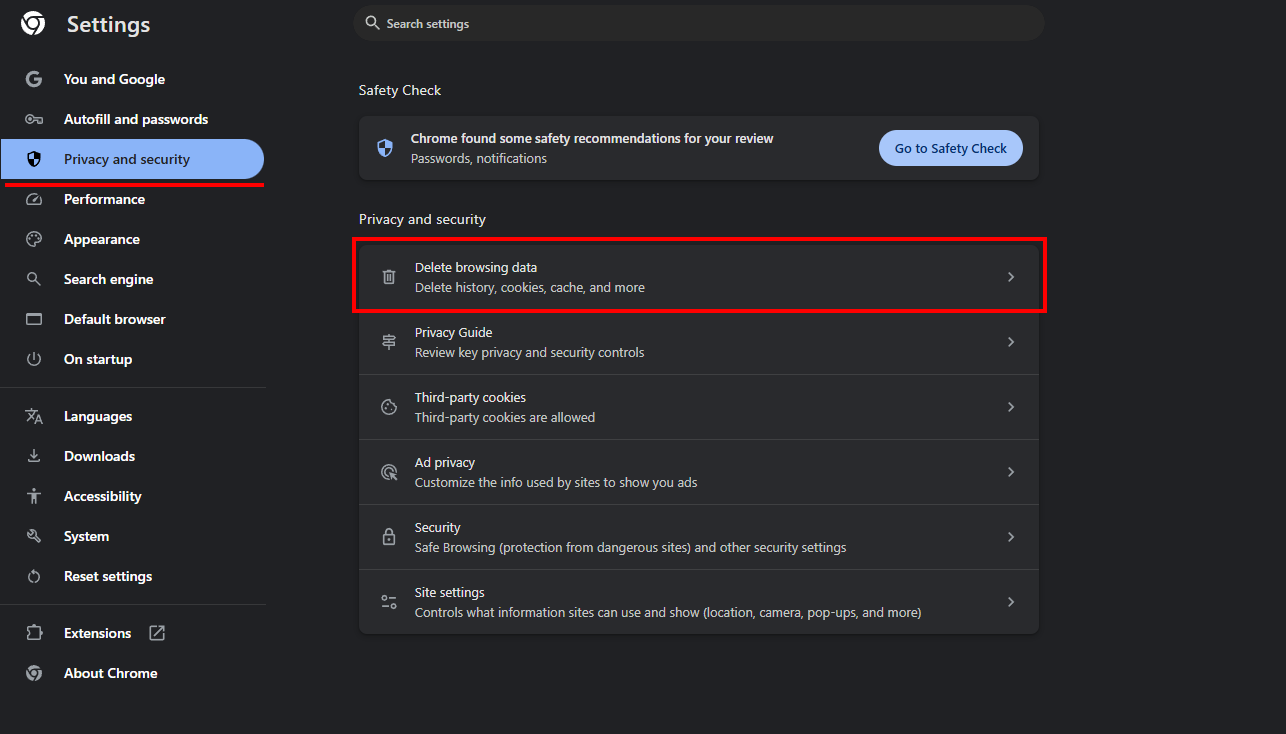
Go to the browser settings.
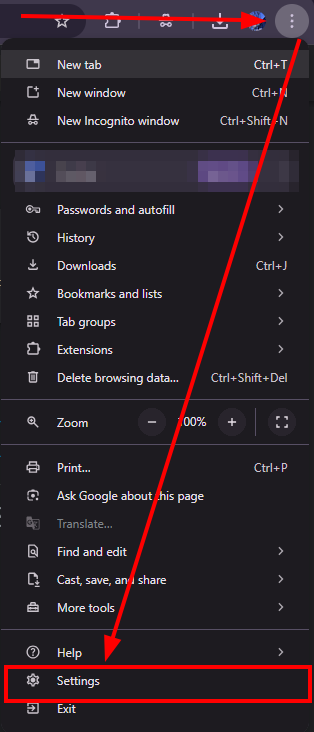
Scroll to the "Privacy and security" block and select clear browser data (clear history, cookies, and cache):
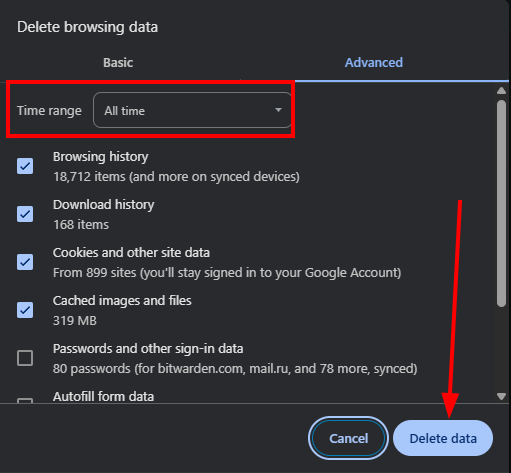
Go to the "Advanced" tab
If you have never done this before or the last time was more than a month ago - it is better to select "All time".
Click "Delete data"
Method 3. Incognito Mode.
To check how a page works without cache, you can use Incognito Mode.
In this mode, Chrome does not save browser history and information you enter in forms. Cookies and site data are deleted when you exit incognito mode.