
If your computer has an additional antivirus enabled, besides the built-in system protection of the PC, it must be disabled during the online class or when working with AlgoVSC.
Antiviruses such as Avast, Kaspersky, etc., block the correct operation of many programs and services, and can also block access to the camera and microphone in the browser.
As the best solution, we recommend completely removing free antiviruses and other side programs from the PC, such as various browser managers, tracking parental software, etc.
An alternative recommended solution is to create another user account on the PC without antiviruses and additional software.
You can learn more about how antiviruses work in the article:
Method №1
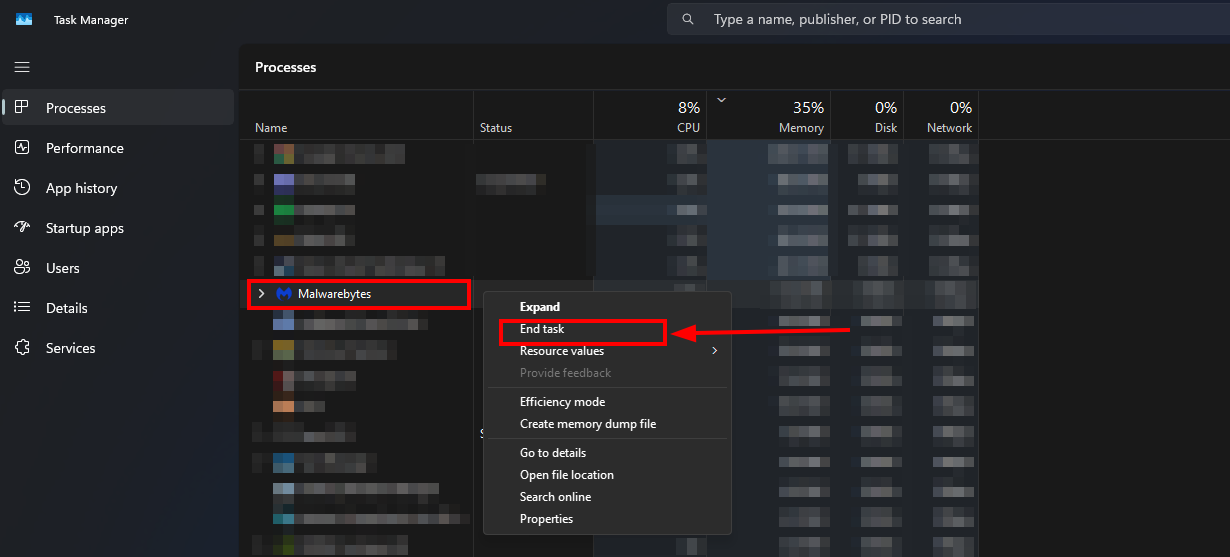
It is best to disable the antivirus through the Task Manager, because otherwise, it will continue to run in the background:
Press the key combination CTRL+SHIFT+ESC on your keyboard
Find the antivirus in the list of processes, right-click on the antivirus and select "End task";
Method №2
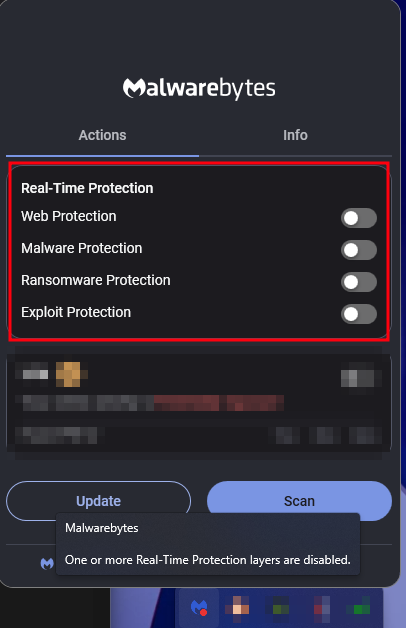
If you are not ready to completely disable the antivirus's background operation, or if it is impossible for your specific antivirus, then disable it in the system tray:
Open the system tray
Find your antivirus icon and right-click on it,
Select disable/pause antivirus protection (the wording depends on which antivirus you are using. An example for Malwarebytes antivirus is given below.)
How to disable antivirus in the browser
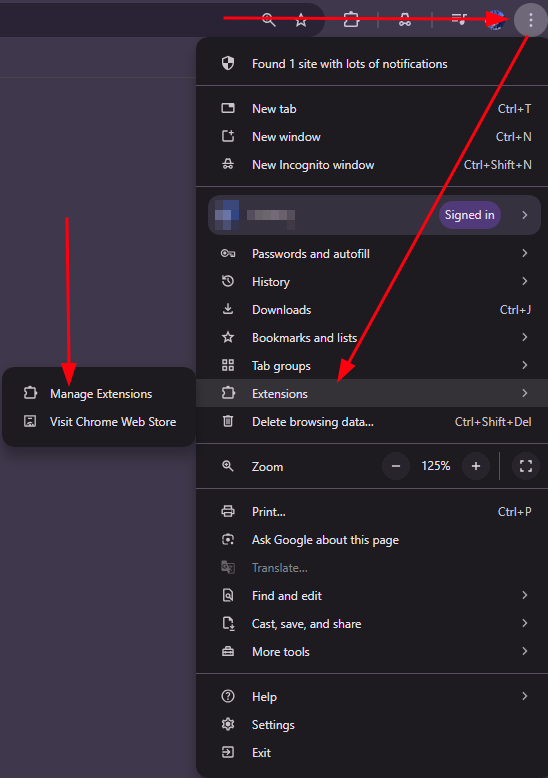
Some antiviruses, such as Kaspersky, may install their own extensions in the Google Chrome browser.
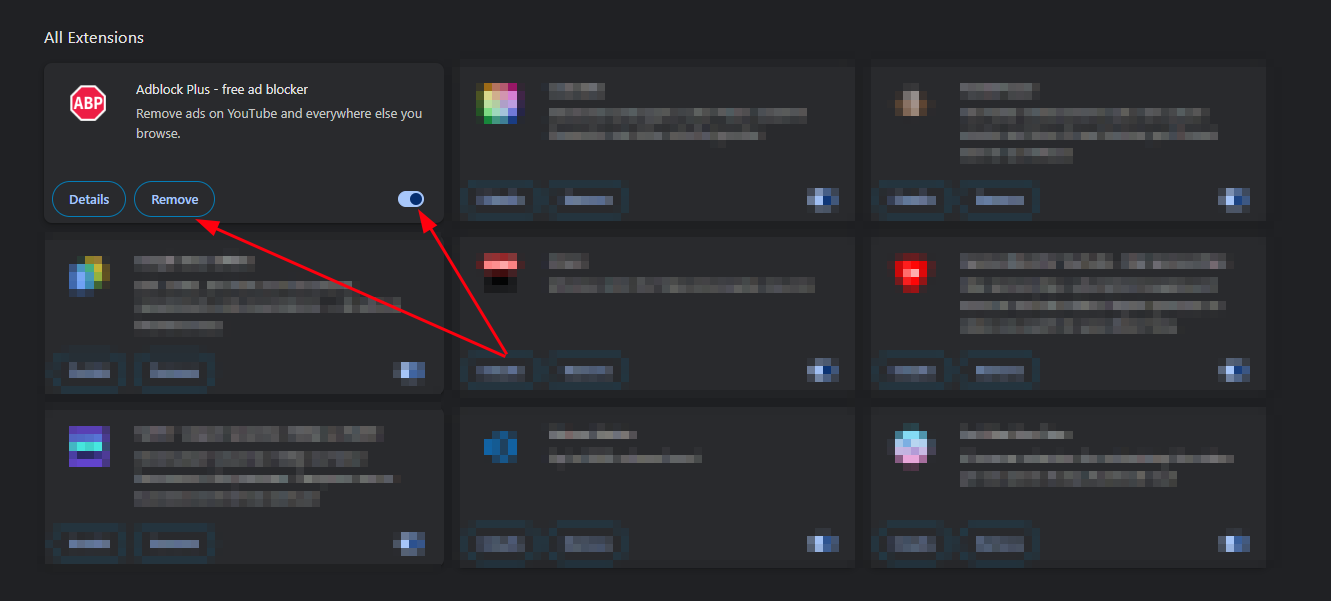
In this case, you need to remove this extension in the browser
1. Open Google settings
2. Go to Extensions -> Manage extensions
3. Remove the extension or disable it.
Done! You have disabled or removed the antivirus.