
General Information
Why it is important to use the latest Browser version:
Improved security measures on the internet and updated database of computer threats
Fewer errors, freezes, and crashes.
The update helps to resolve critical issues on the user's PC from the current program's side.
For browsers to be used fully for learning and working on our web platforms, they must be updated to the latest version.
We recommend referring to our technical requirements.
Updating the browser through the browser's "Help":
Since the Google Chrome browser is specifically recommended for using the learning platform, we will show how to update the browser using it as an example.
Open the browser.
Click on the "Customize and control Google Chrome" icon (three dots in the upper right corner),
Select "Help", then "About Google Chrome".
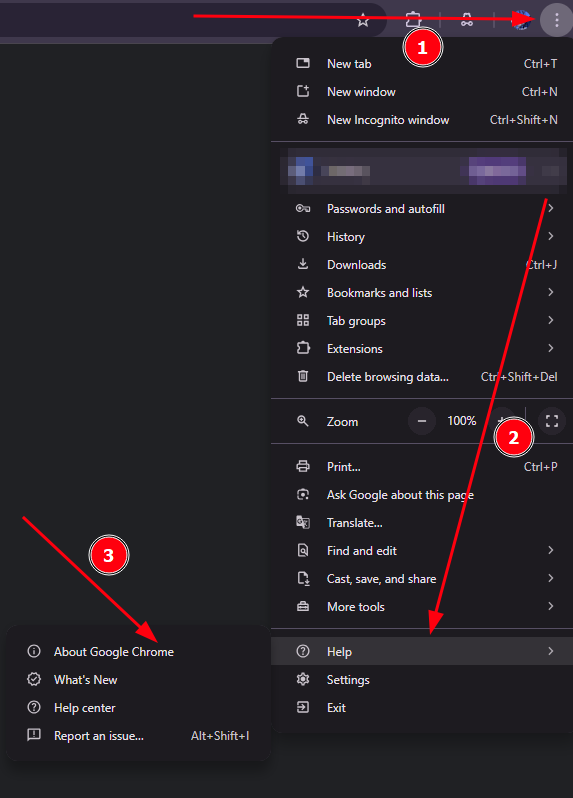
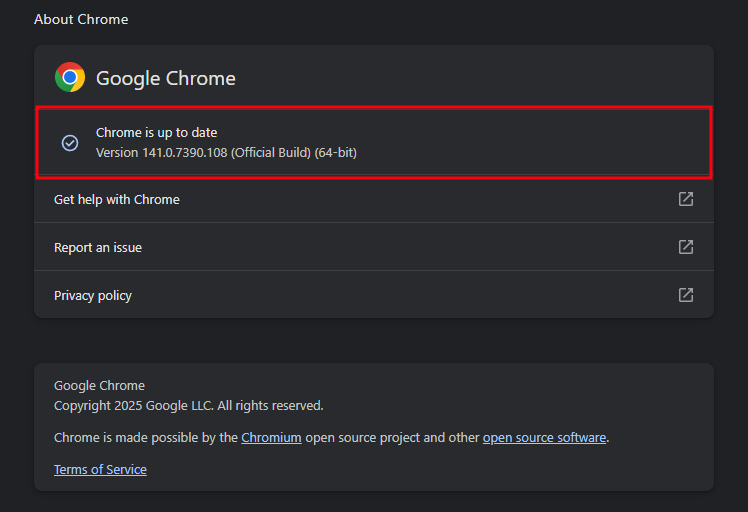
The browser version will be displayed on the opened page.
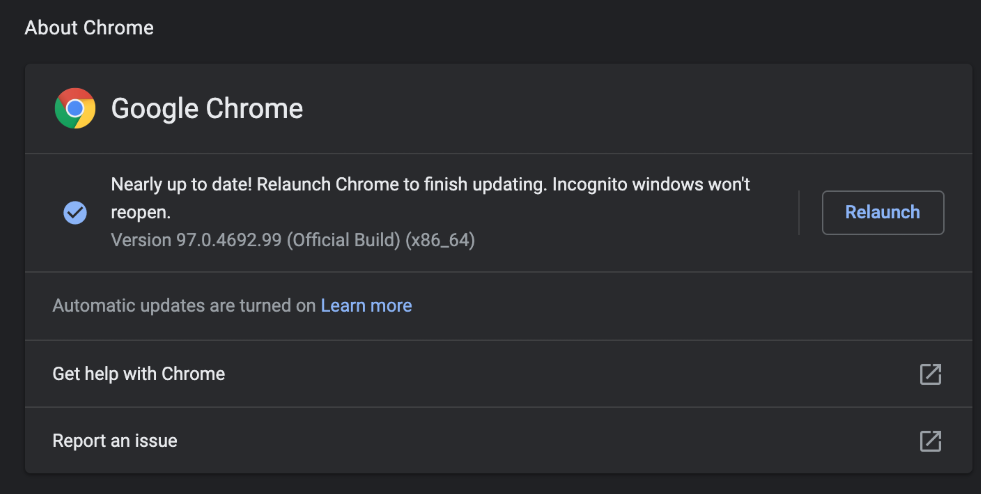
If the browser has an old version, Google Chrome will prompt you to update in this window via the "Relaunch" button. The browser will restart and install the latest update.
If you encountered a problem installing updates, we recommend remove and reinstall the browser from the official website.