
----------------------> Installation file <----------------------
General information
To study in Python courses, you need to install additional software — the Algo Visual Studio Code editor.
The student’s computer must have the Algorithmics version of VS Code installed.
We don't support using the original VS Code program, as no stable method has been found for installing the algopython extension, which integrates the learning platform with the program used during lessons.
Installation requirements
Check the technical requirements for the computer and operating system:
OS: Windows 11+ (64-bit only)
If your OS version does not meet the requirements, Algo VS Code will not install correctly, and there is a high risk of malfunctions.
Install under the PC Administrator account
If your computer has multiple user accounts, installation must be performed from the same account where the program will be used. Other accounts will not have access.
For example, if your child has a separate account, installation must be done under that account.
Use a username written in Latin characters
Example: Python. Due to technical limitations, accounts named in Cyrillic may cause errors in some functions of the code editor.
Check the correct date and time settings on the PC
Your computer must have the correct date and time set; otherwise, file-saving problems may occur.
Disable antivirus software and browser extensions
You must disable all antivirus software before installing Algo VS Code, as it may block required installation packages.
Step-by-Step installation guide
The steps differ depending on whether you are installing the program for the first time or reinstalling it:
If installing for the first time — follow the instructions for Initial installation.
If reinstalling — follow the instructions for Reinstallation.
Initial installation
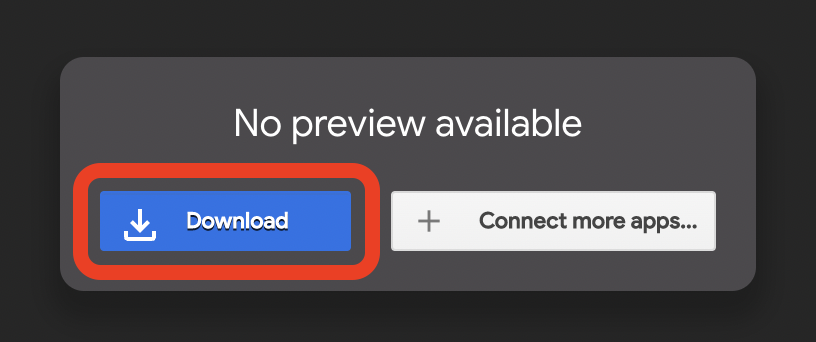
Download the installer by clicking Download.
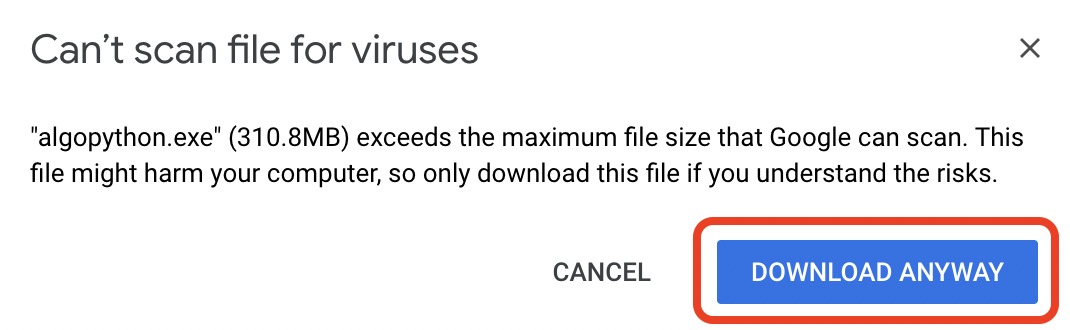
If the browser shows the warning “Can’t scan file for viruses”, click "Download anyway".
After downloading, go to the "Downloads" folder, find the file, and run the installer (double-click).
Alternatively, launch it directly from the browser’s downloads bar.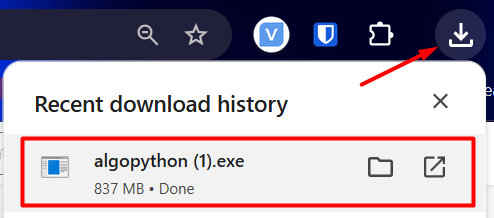
If you see a Windows Security warning, click "Run".
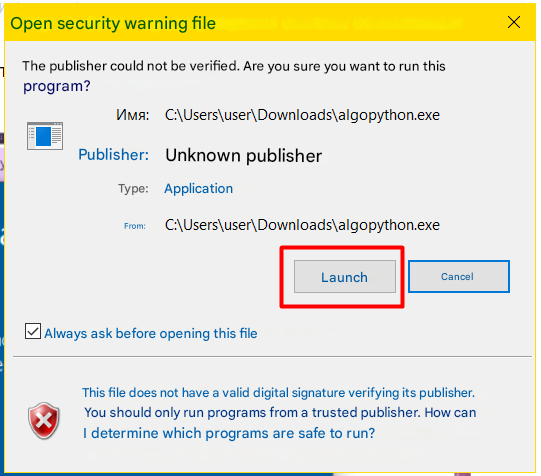
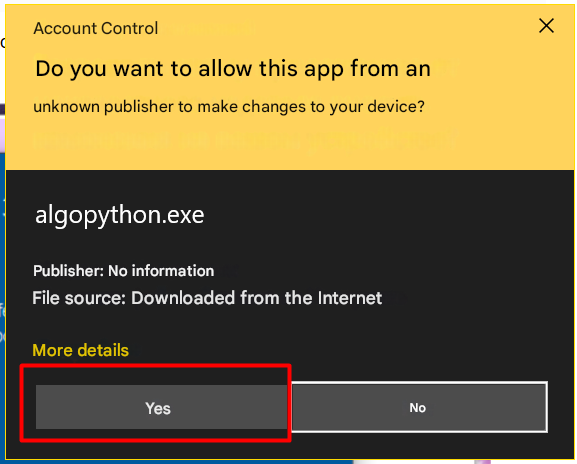
If another confirmation window appears, click "Yes".
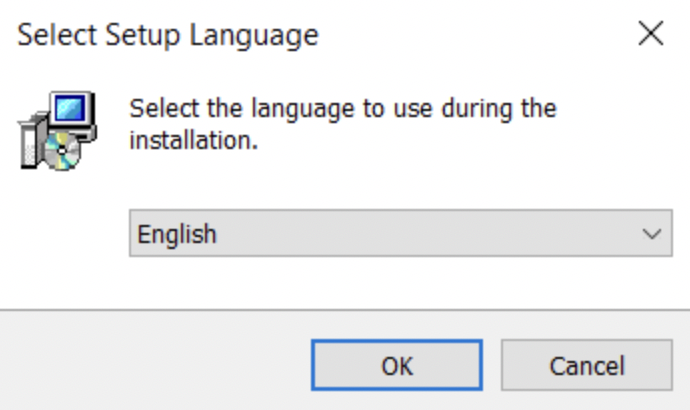
Select the installation language and click "OK".
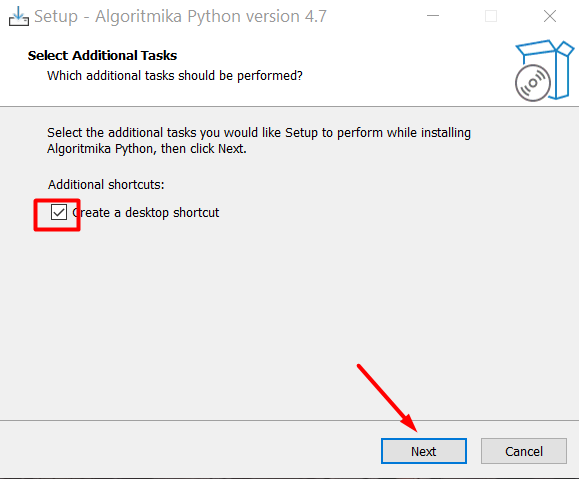
Choose whether to create a desktop shortcut, then click "Next".
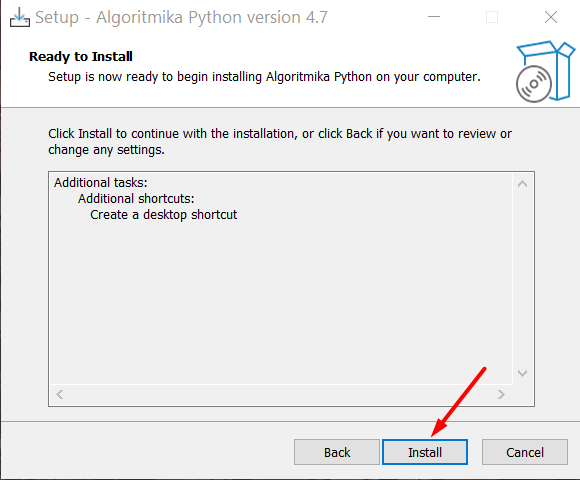
Click "Install".
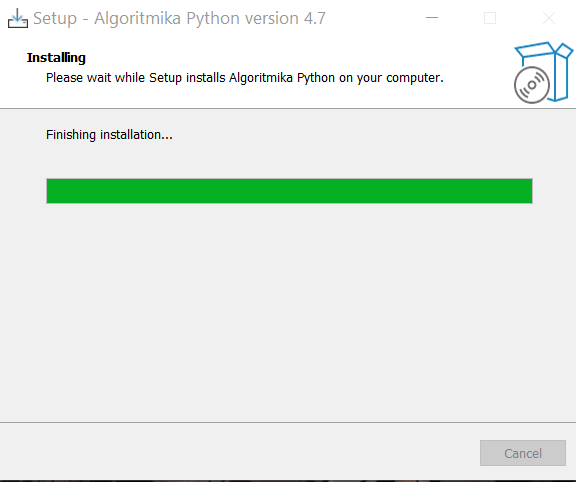
Wait for installation to finish.
This may take 10–15 minutes. The window may display "Finishing installation" for a while — the process is still ongoing.
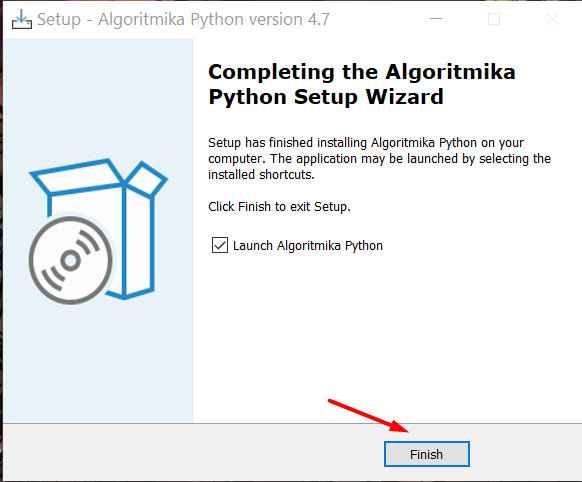
Once installation is complete, you will be prompted to launch the program. Click "Finish".
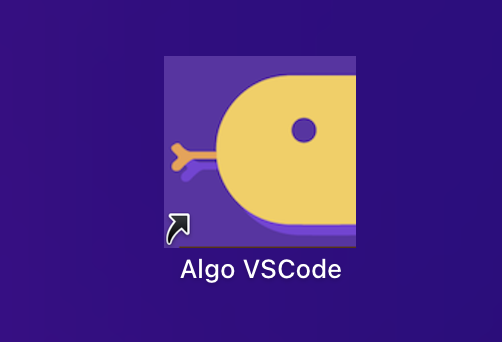
After this, Algo VS Code can be opened from the desktop shortcut or via "Start" → "Algoritmika" → "VSCode".
Checking installation and program functionality
After installation, it is important to verify that the program works correctly:
Launch the program.
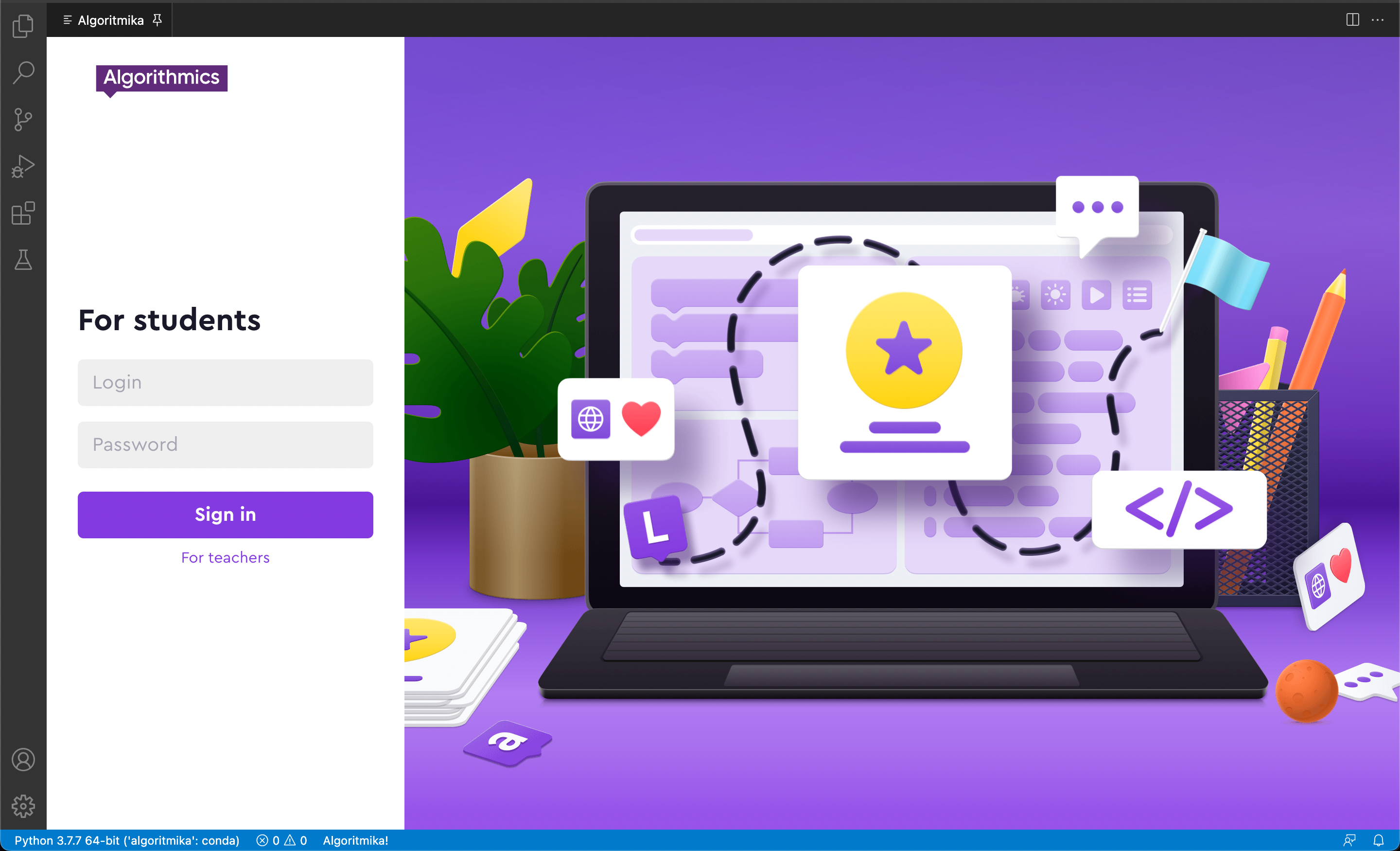
Confirm that the login window for the learning platform appears.
In the Extensions tab, ensure only two extensions are installed:
algopython
Python (by Microsoft)
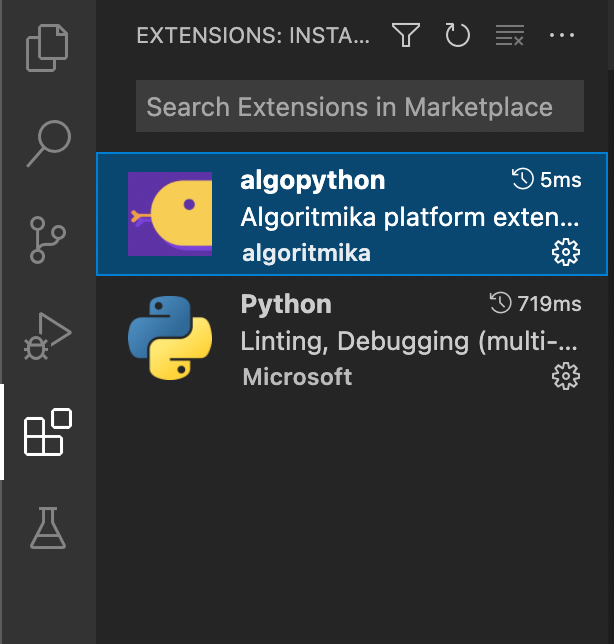
Verify that the algopython extension version is
v20250624.103906.0or higher.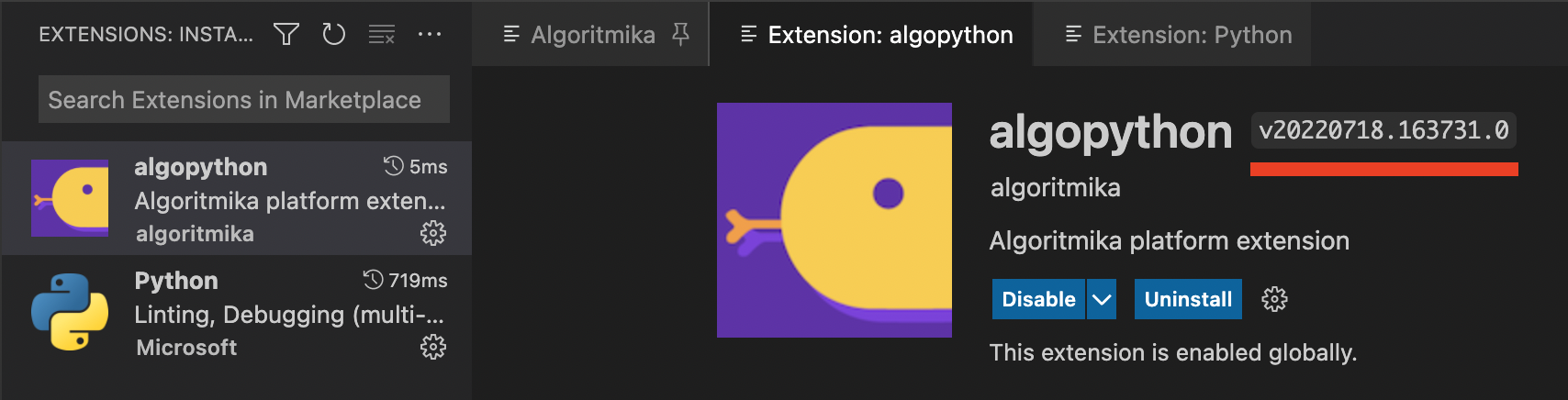
Check that the correct Python interpreter is being used.
In the bottom-left corner of the program, you should see: Python 3.9.13 64-bit.

Next, test the code editor:
Create a new file: "File" → "New File".
Select file type: "Text File".
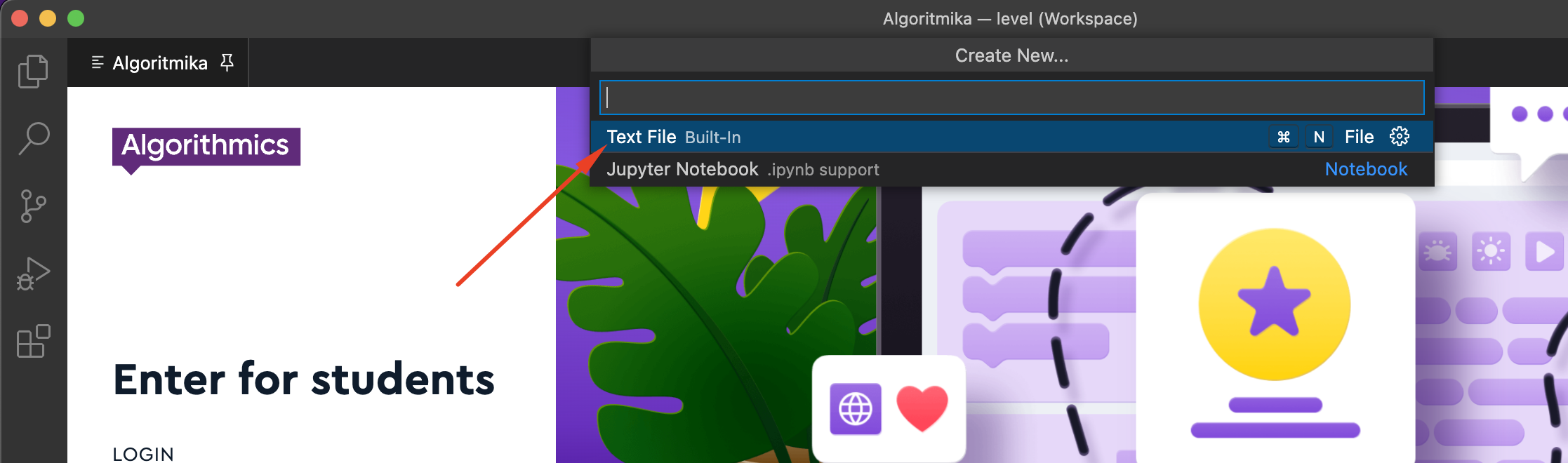
Type:
print('Hello, world!')Save the file with a
.pyextension: "File" → "Save As".After saving, Algo VS Code will recognize the file as Python code, and syntax highlighting will appear.

Run the program by pressing "F5" or the "Run Code" button.

If installed correctly, the terminal will display the output: "Hello, world!"

Reinstallation
If Algo VS Code was previously installed, you must perform a clean reinstallation before installing the new version. This prevents conflicts between old and new files.
Uninstall the program in the standard way.
Search your PC for all remaining "Algoritmika" files:
Use the search bar or navigate to C:\Users\User\AppData\Local\Programs\Algoritmika
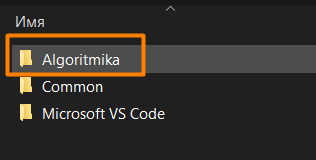
Delete all found files.
Empty the Recycle Bin.
Reinstall the program following the Initial Installation instructions above.
If you encounter any difficulties, please contact Algorithmics Technical Support — we’ll be happy to help!
w