
Screenshot of the problem
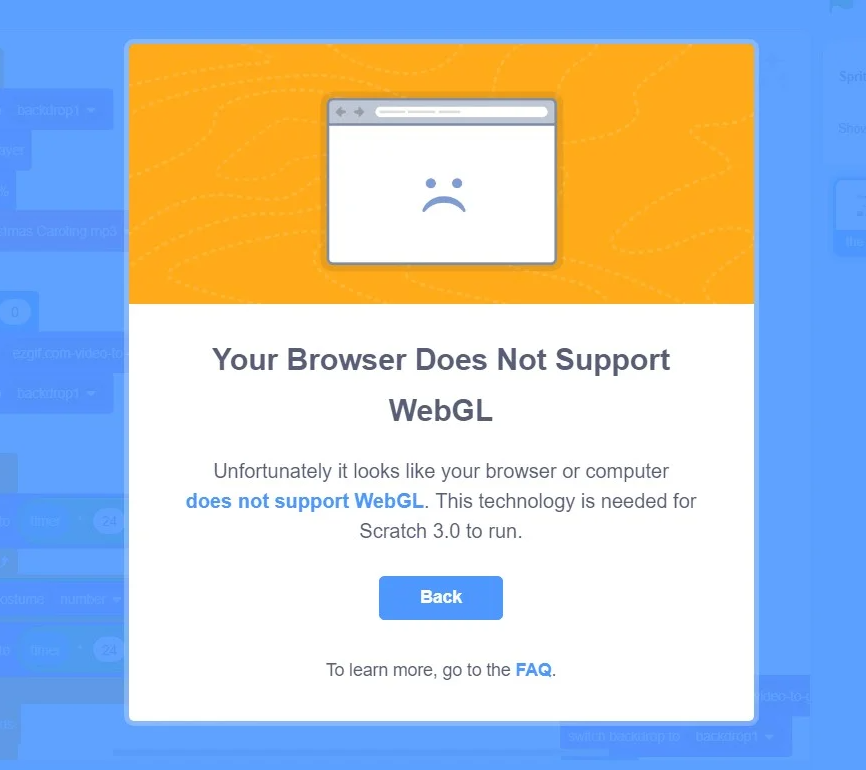
Possible сauses of the problem and their solutions
An outdated version of the browser is being used.
In most cases (over 90%), simply updating the browser resolves the issue.
If the previous step did not help or you encountered difficulties, install a Chromium-based browser that has never been installed on this PC before (e.g., Opera, Vivaldi) and use the platform from there.
The student is using a PC with an outdated operating system that does not meet the minimum technical requirements.
In this case, the only solution is to update the PC to a supported OS that meets the minimum requirements.
Disabled hardware acceleration in the browser:
Go to
chrome://settings(typechrome://settingsinto the browser’s address bar and press Enter).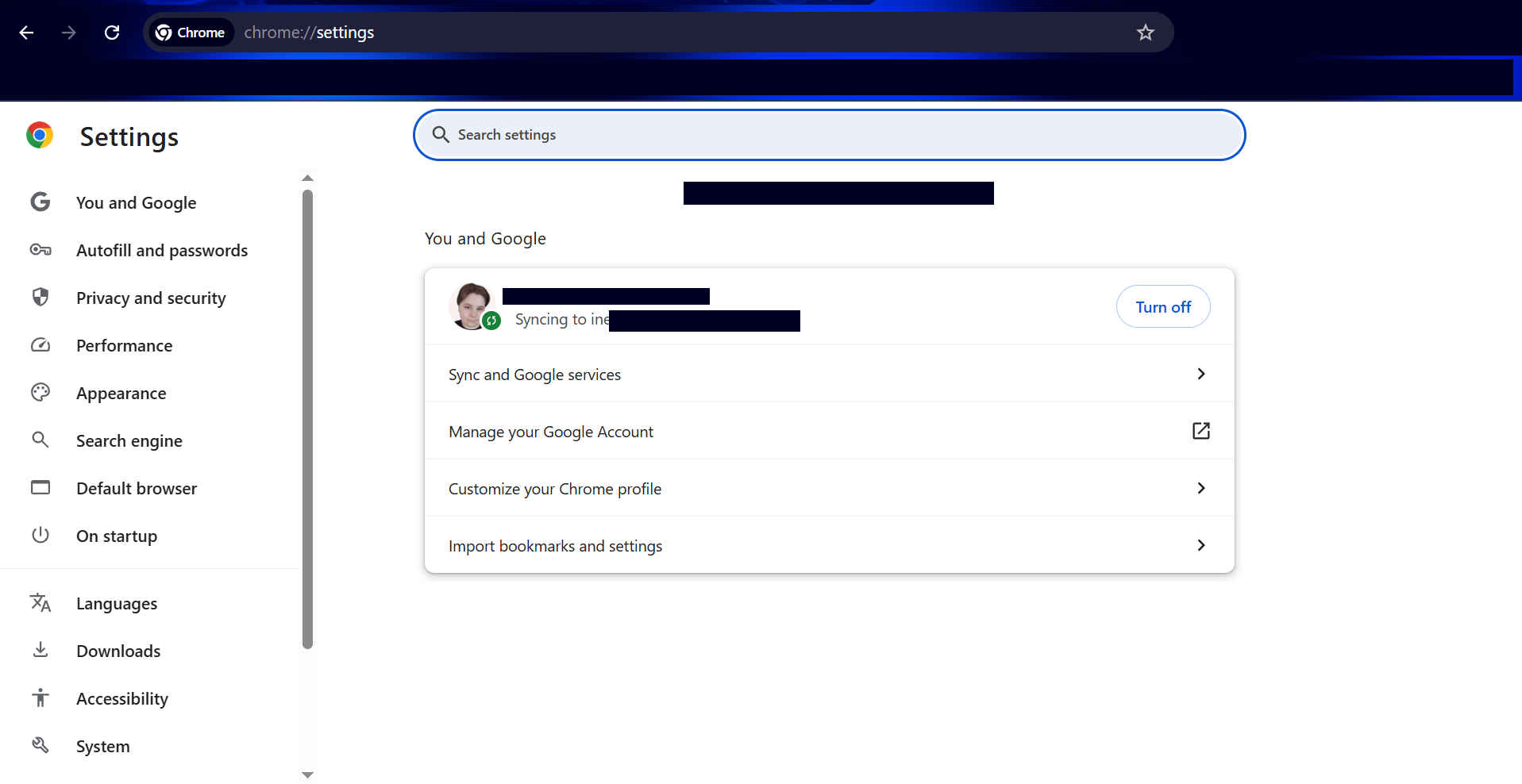
Open the System section.
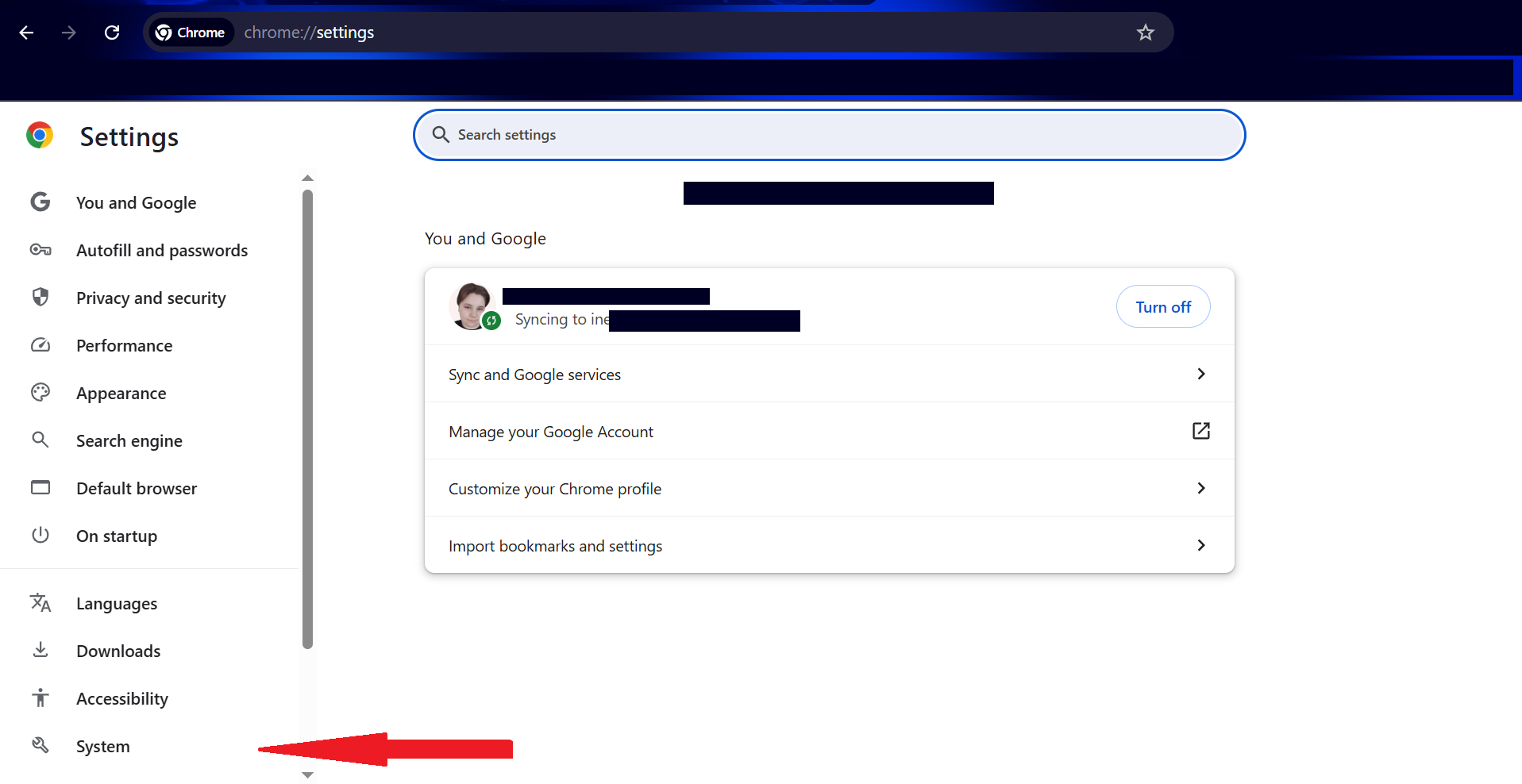
Find the option Use hardware acceleration when available and enable it by clicking the checkbox so that it turns blue.
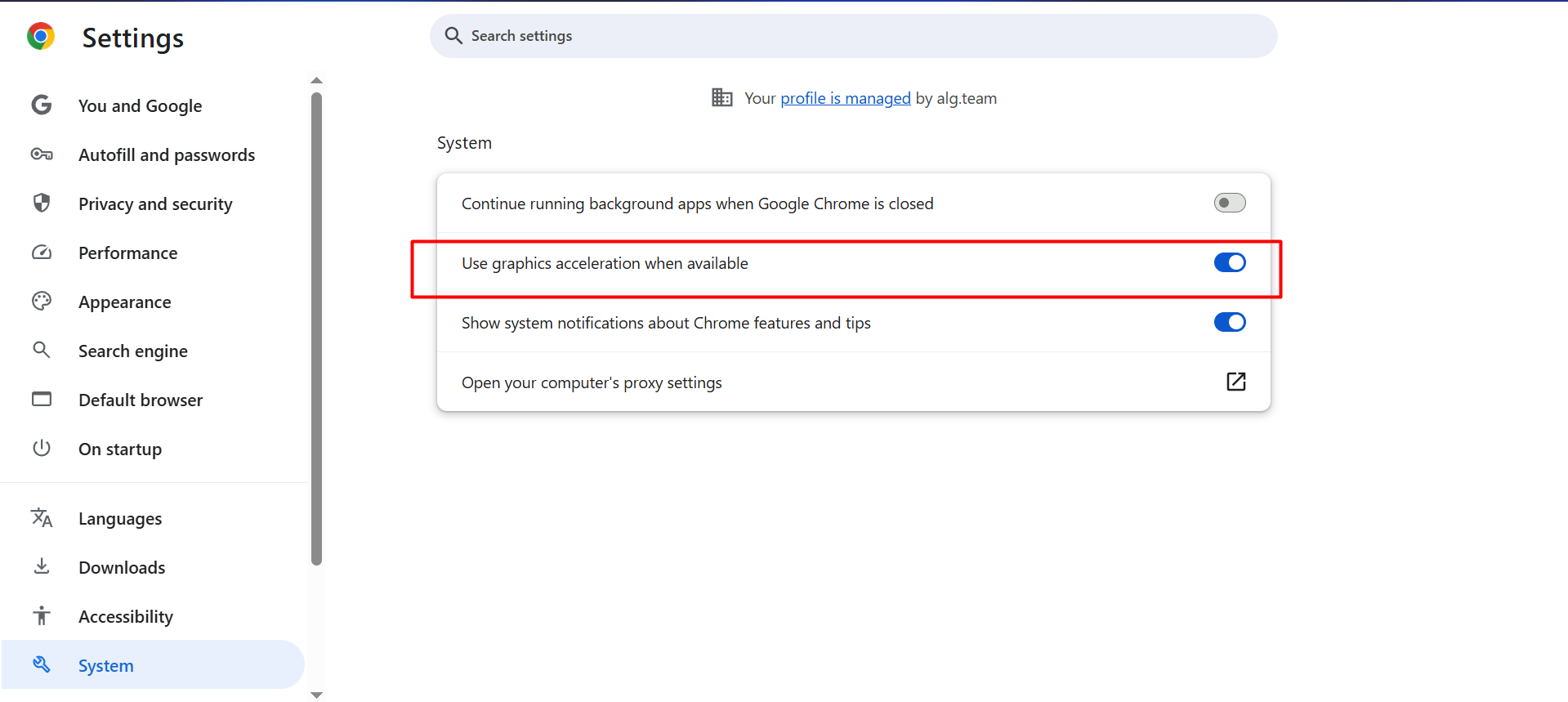
Restart Chrome for the changes to take effect.
Disabled WebGL support in the browser:
Go to
chrome://flags(typechrome://flagsinto the browser’s address bar and press Enter).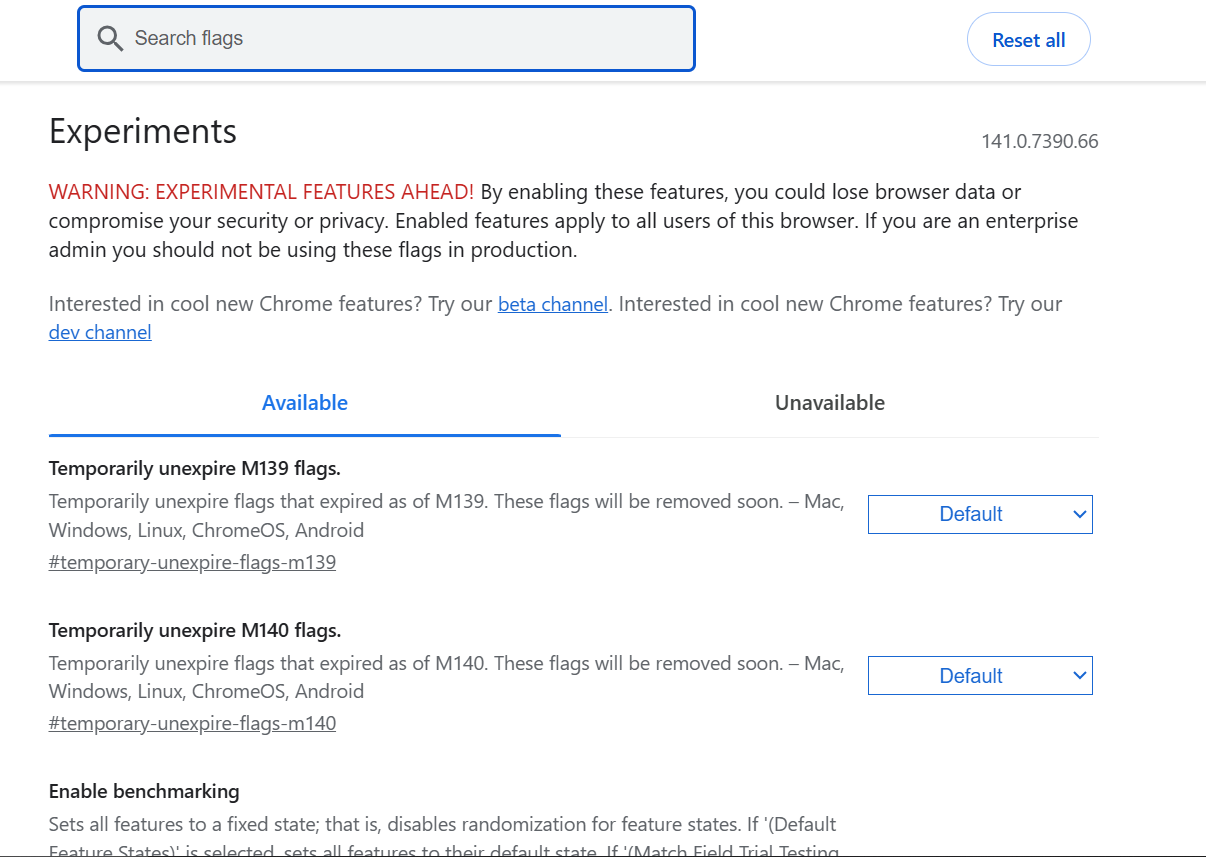
Find the option Enable WebGL 2.0 Prototype and set its status to Enabled.
Since the flags page contains many settings, you can use the search bar on the page and type “webgl” to locate it quickly.
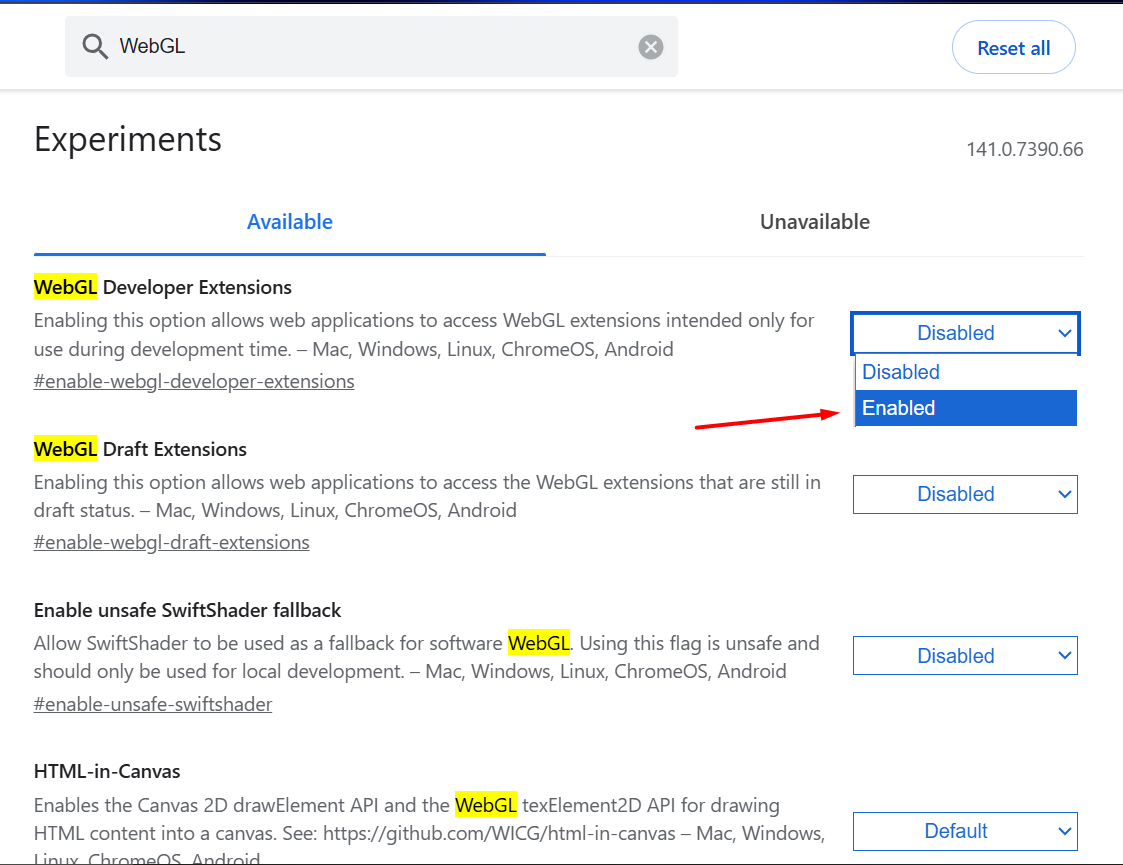
Restart Chrome for the changes to take effect.