
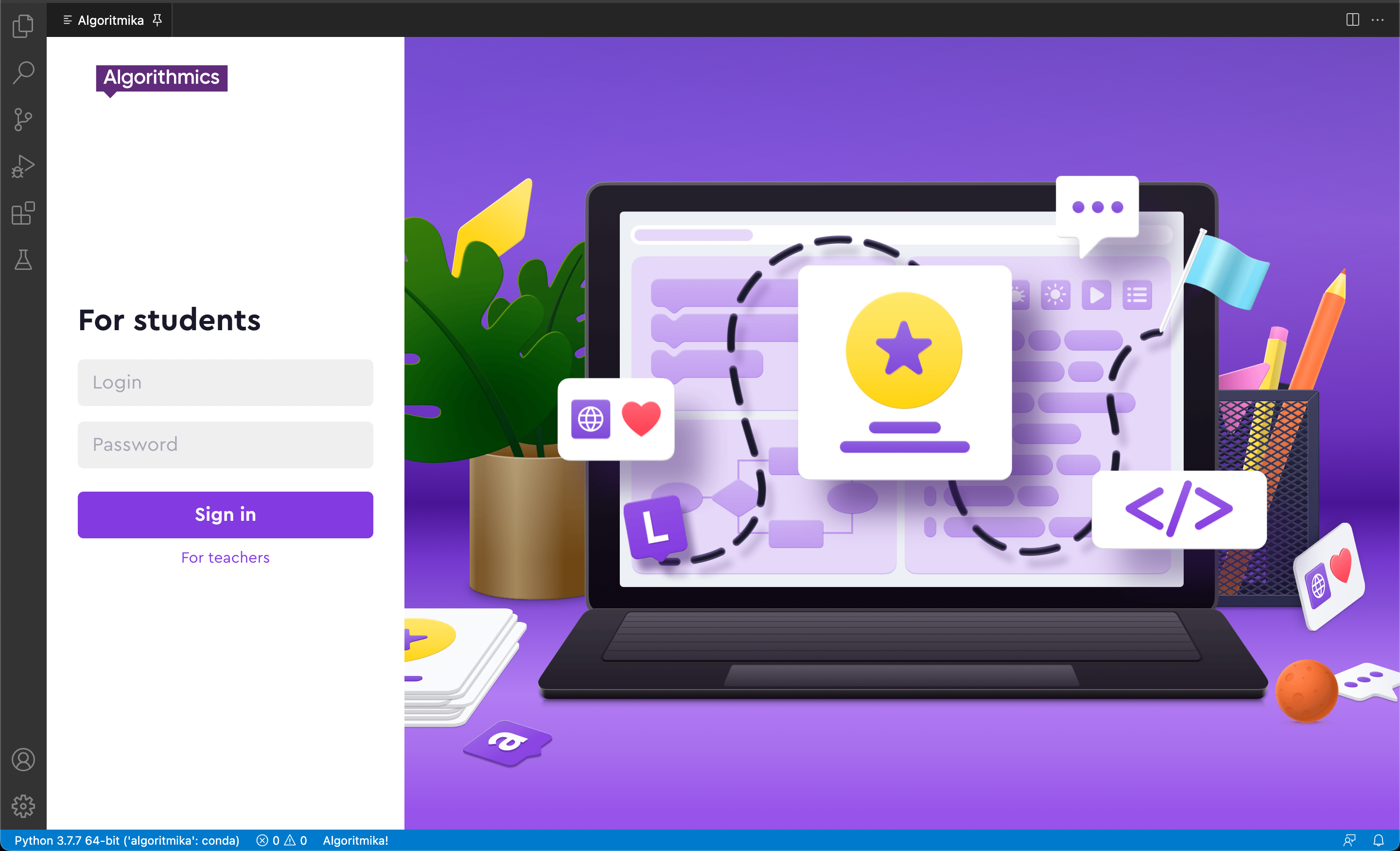
If the program is installed correctly, you should see the login window for the student platform:
No initial screen: what to do?
If the program freezes on “Checking for updates,” restart it — the login window should then appear.
If this does not happen, please check the following:
Internet connection stability.
Relevance of installed extensions.
If you discover that your algopython extension is outdated, do the following:
Make sure you have the latest version of Algo VSCode installed. You can find all current installers in the knowledge base:
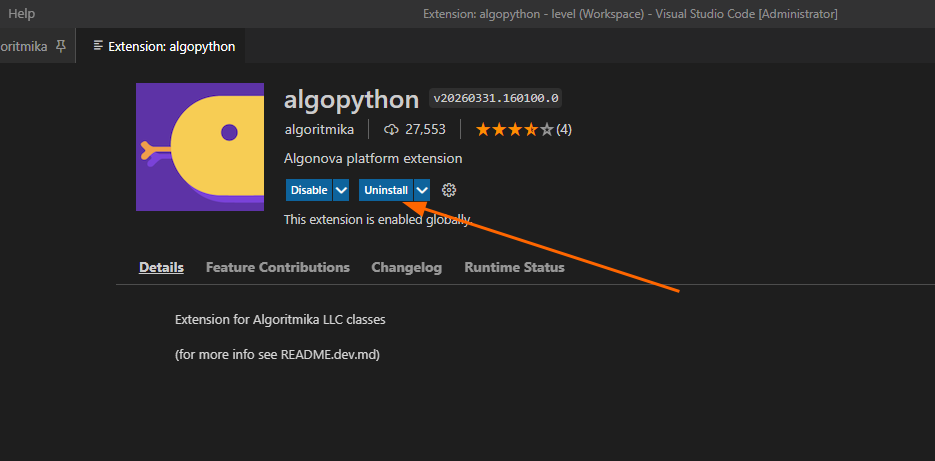
If the program version is up to date but the extension is not, uninstall the current version of algopython by clicking Uninstall.
Restart Algo VSCode.
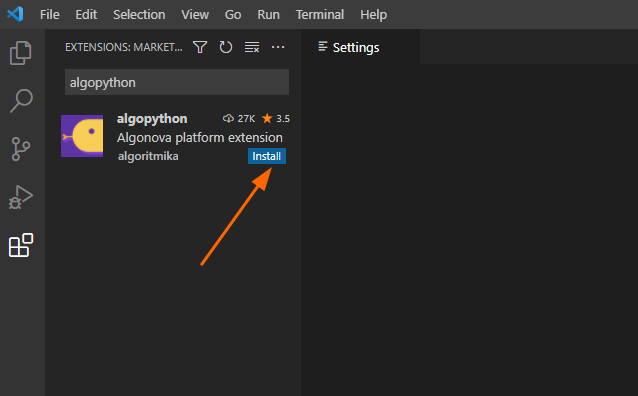
Go back to the Extensions tab and search for algopython.
Install the extension by clicking Install.
6.Restart Algo VSCode again, open the Extensions tab, and make sure the latest version is installed.
Another possible cause of the issue may be a local certificate problem with the learning platform website, which is used during the update check at program startup.
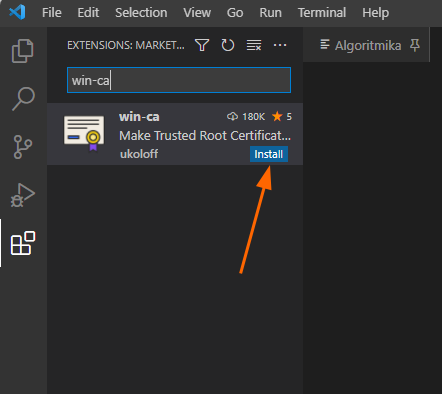
Install one more extension — win-ca.
Restart Algo VSCode.
We additionally recommend doing the following:
Make sure that proxy servers are disabled. This may cause problems during the update check.
After disabling the proxy, restart the program.If your PC is low-performance, try closing all other programs and online services, then restart Algo VSCode only.
Disable your antivirus and restart the program.
If none of the above helps, completely reinstall the program, making sure to remove the old version first.
I See the Error: “Failed to update extension”
If, when launching the program, you see the message “Please wait, checking for updates…” for a long time and then the error “Failed to update extension,” please follow these steps:

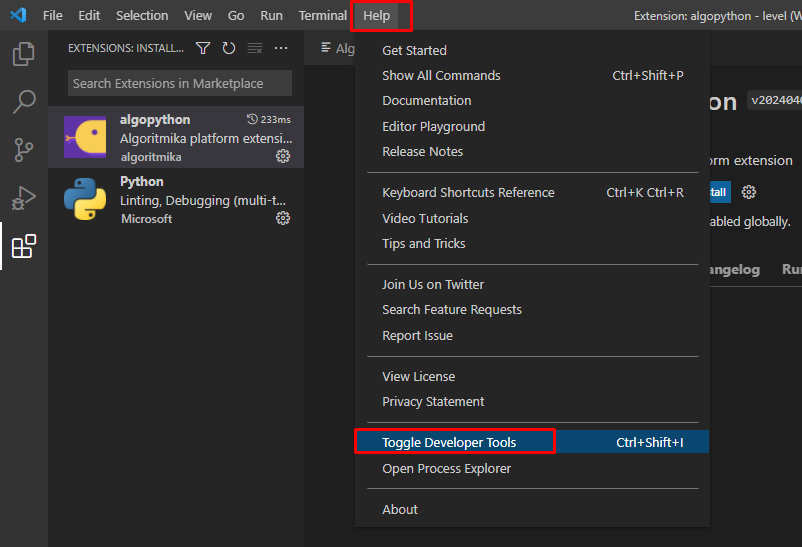
Open the Help tab → select Toggle Developer Tools.
In the opened window, go to the Console tab and check whether the following message appears: Extension update error: Error: spawn cmd.exe ENOENT
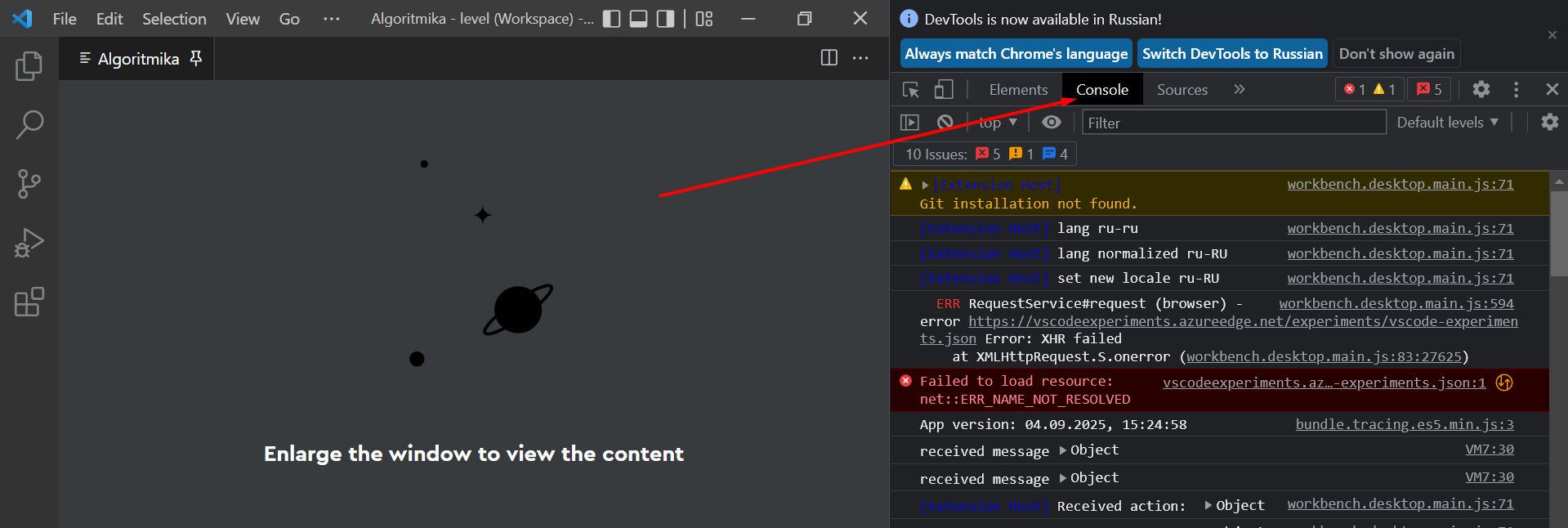
Only if you see this specific error message should you proceed with the following steps.
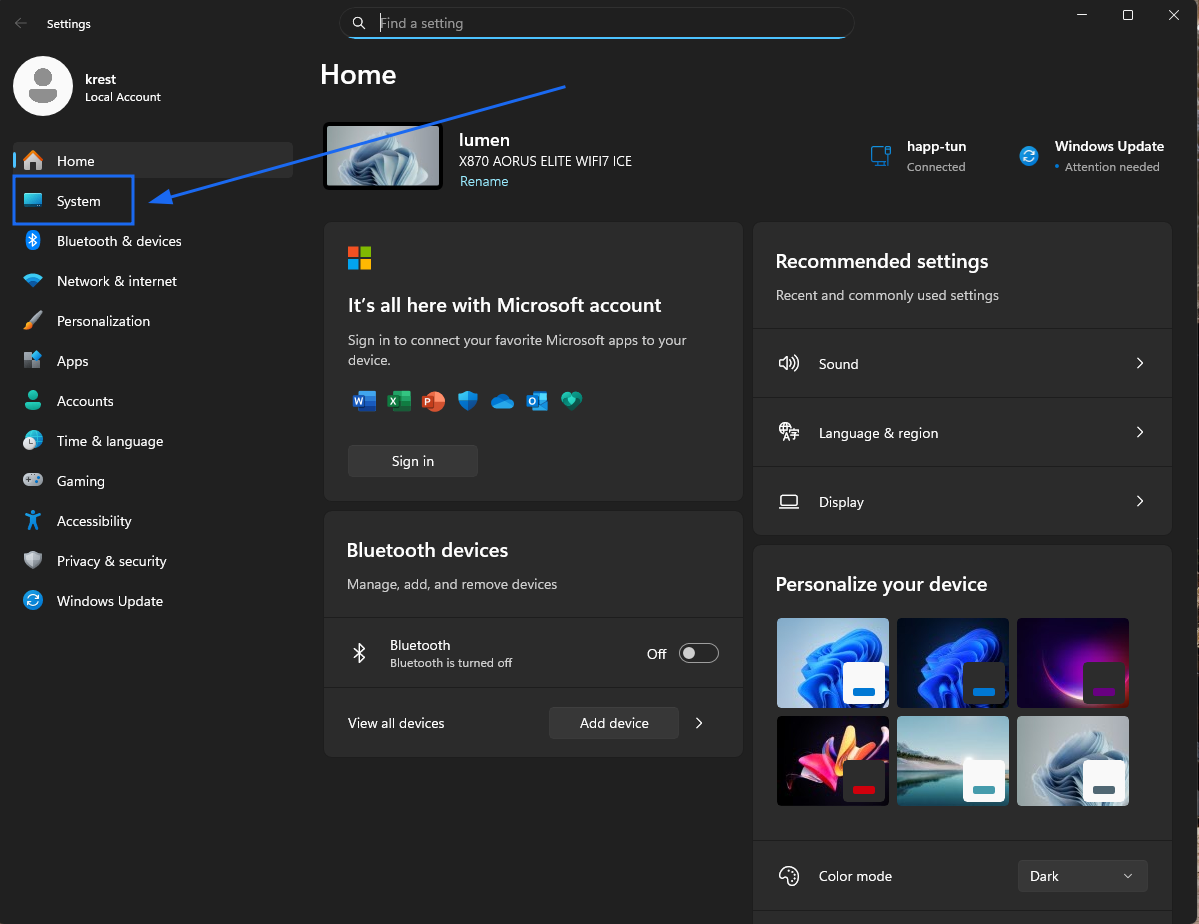
Use the keyboard shortcut "Win + I" and go to the "System" section:
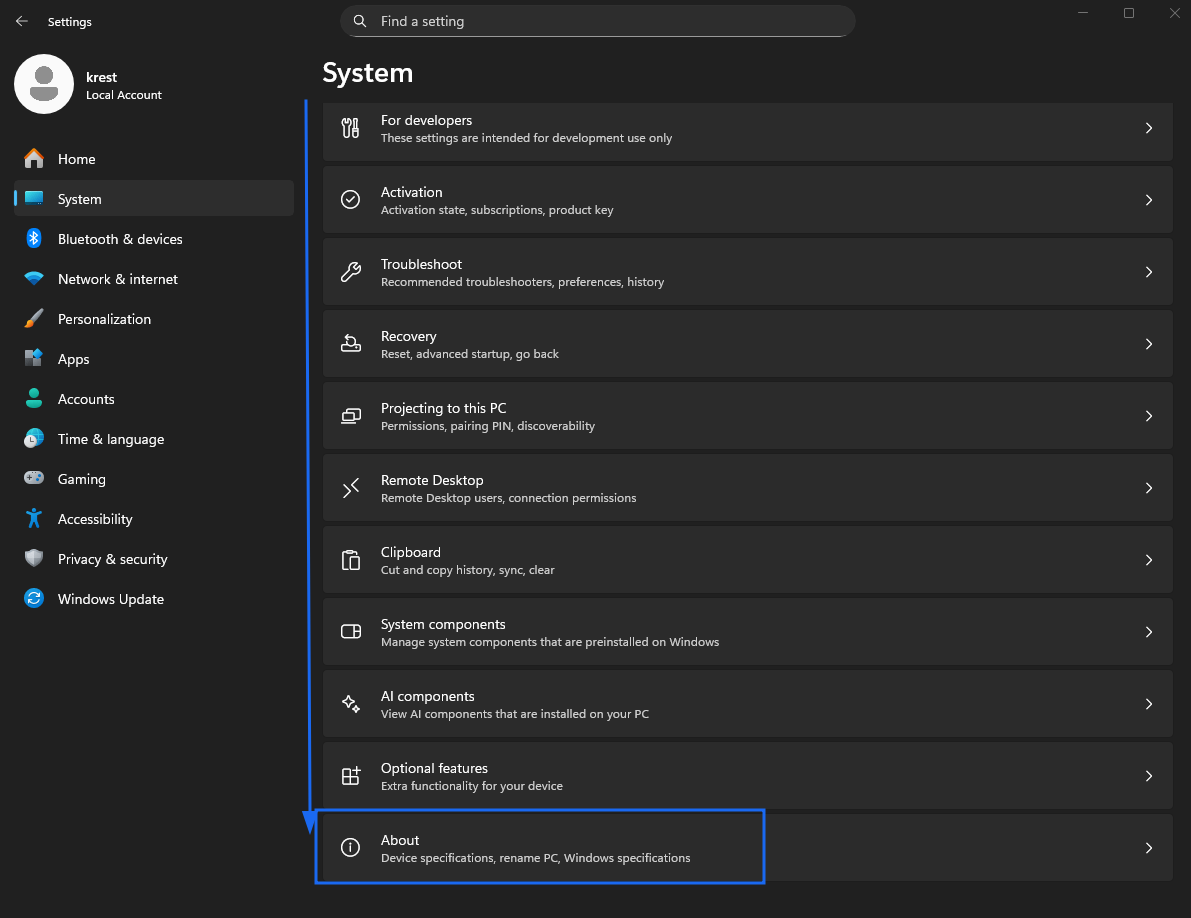
Scroll through the menu that opens to the “About” item.
In the opened System window, click Advanced system settings.

Go to the Advanced tab and select Environment Variables.

In the System variables block, find the variable Path and click New.
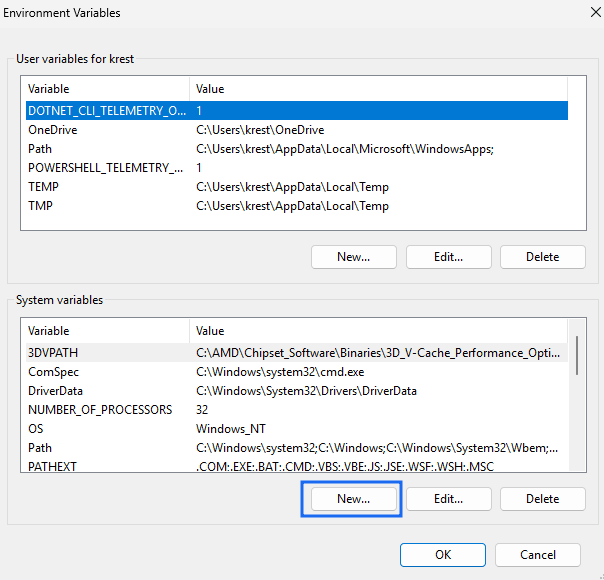
Enter the following value in the input field:
C:\Windows\system32and click OK: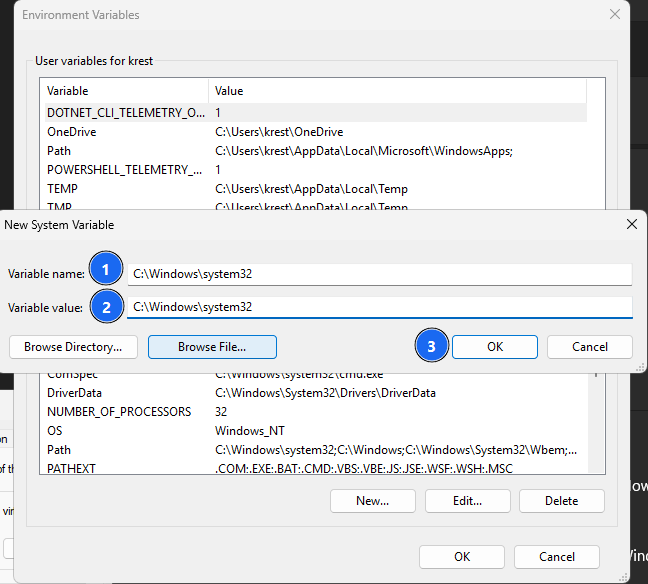
Launch Algo VSCode again and check if the program is working properly.
If you experience any difficulties, please contact Algorithmics Technical Support — we will be happy to help you.