
Diagnostic screen
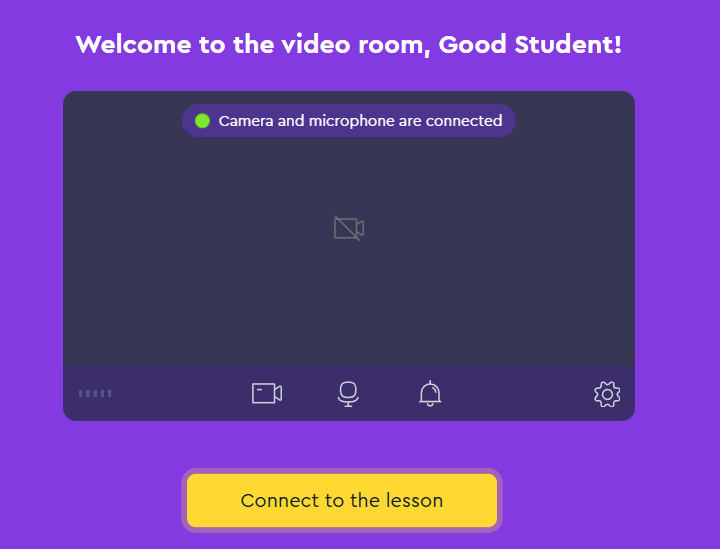
After entering the online room from the learning platform, you will see the initial diagnostic screen where, before connecting to the lesson, you can check your camera and microphone:
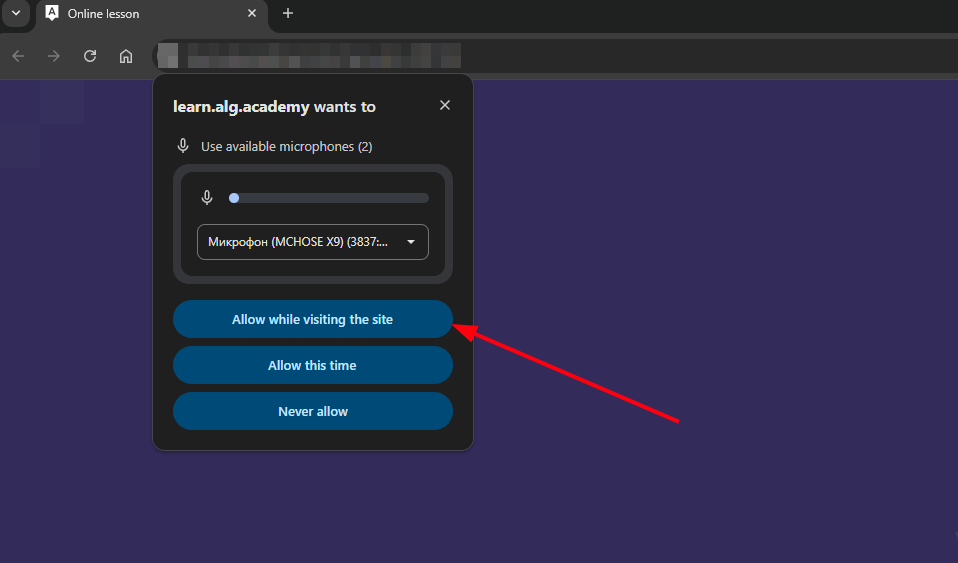
If a pop-up window requesting access to your camera and microphone appears when you enter the online room, click "Allow while visiting the site".
Without this permission, the microphone and camera will not work in the online class!
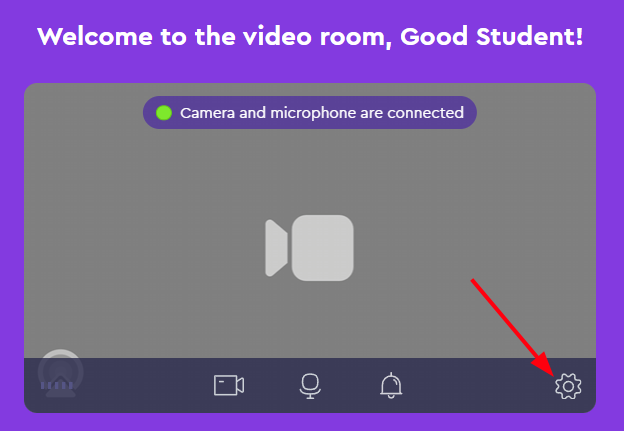
You can select the microphone and camera devices if you have multiple ones connected to your PC.

Before connecting to the lesson, you can also disable or enable the microphone and camera. To do this, left-click on the corresponding device icon.
Unfortunately, we do not yet have the "Choose background" feature when a student turns on their camera, only for the teacher.
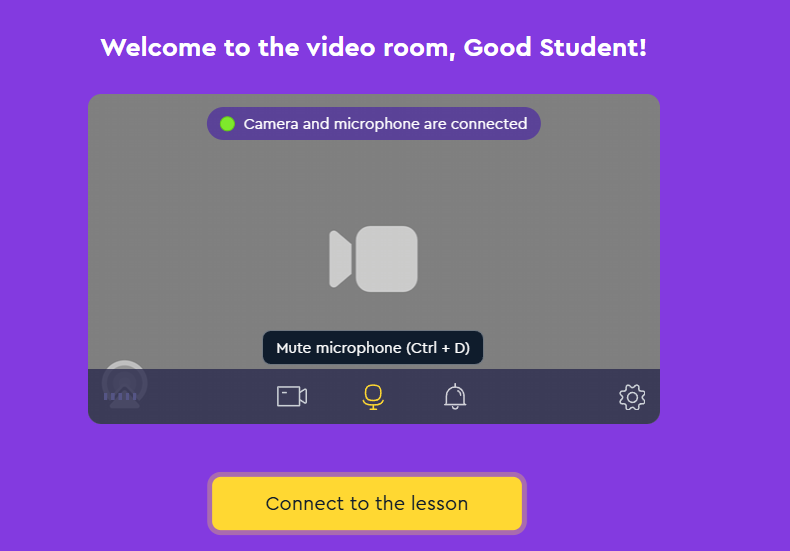
Check that your camera and microphone are working correctly:

If the microphone or camera is not working/not connecting, please refer to this article
When you are ready, click "Connect to the lesson".

Room interface for students
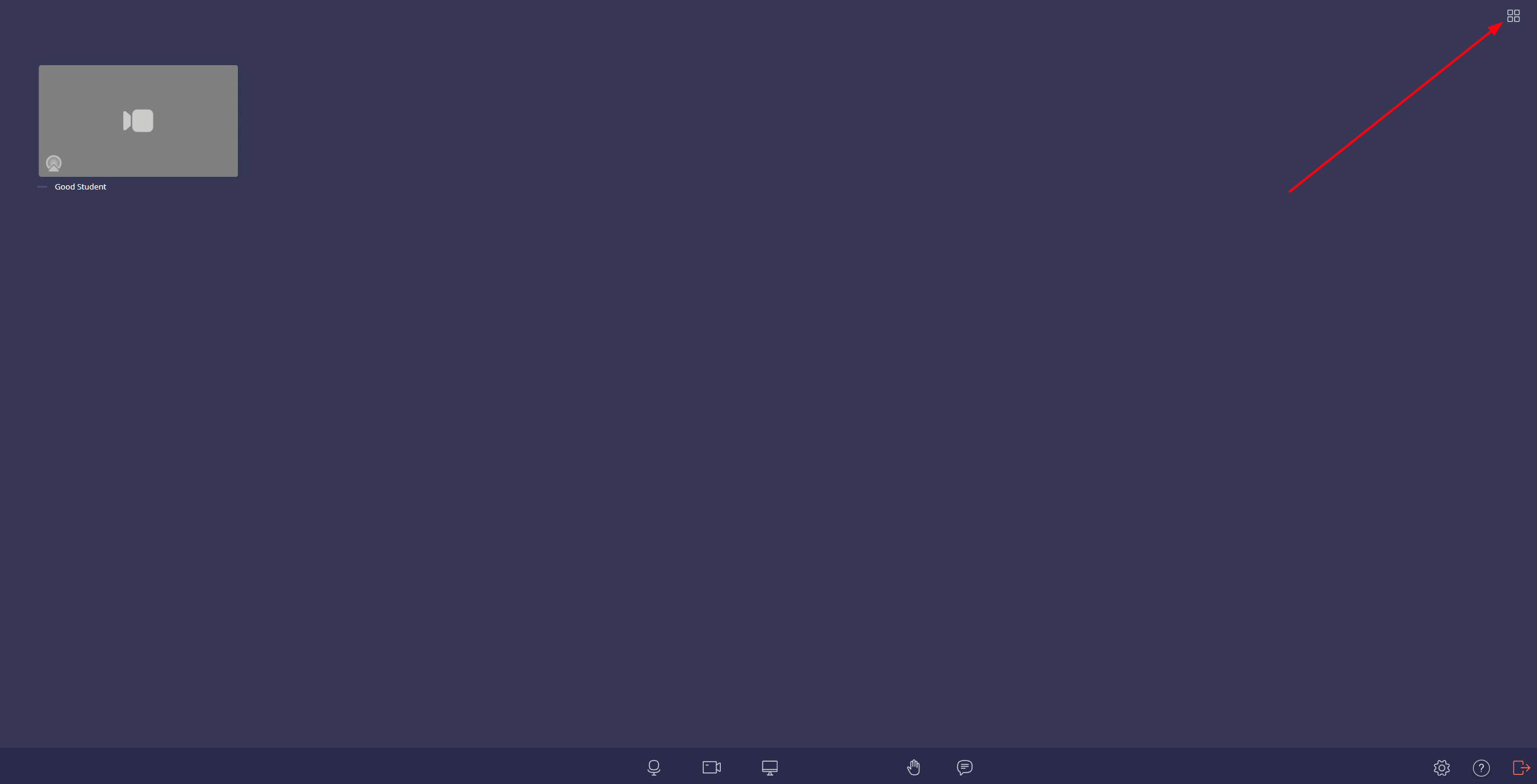
By clicking the grid button, you can change the display of the conference participants' screens.
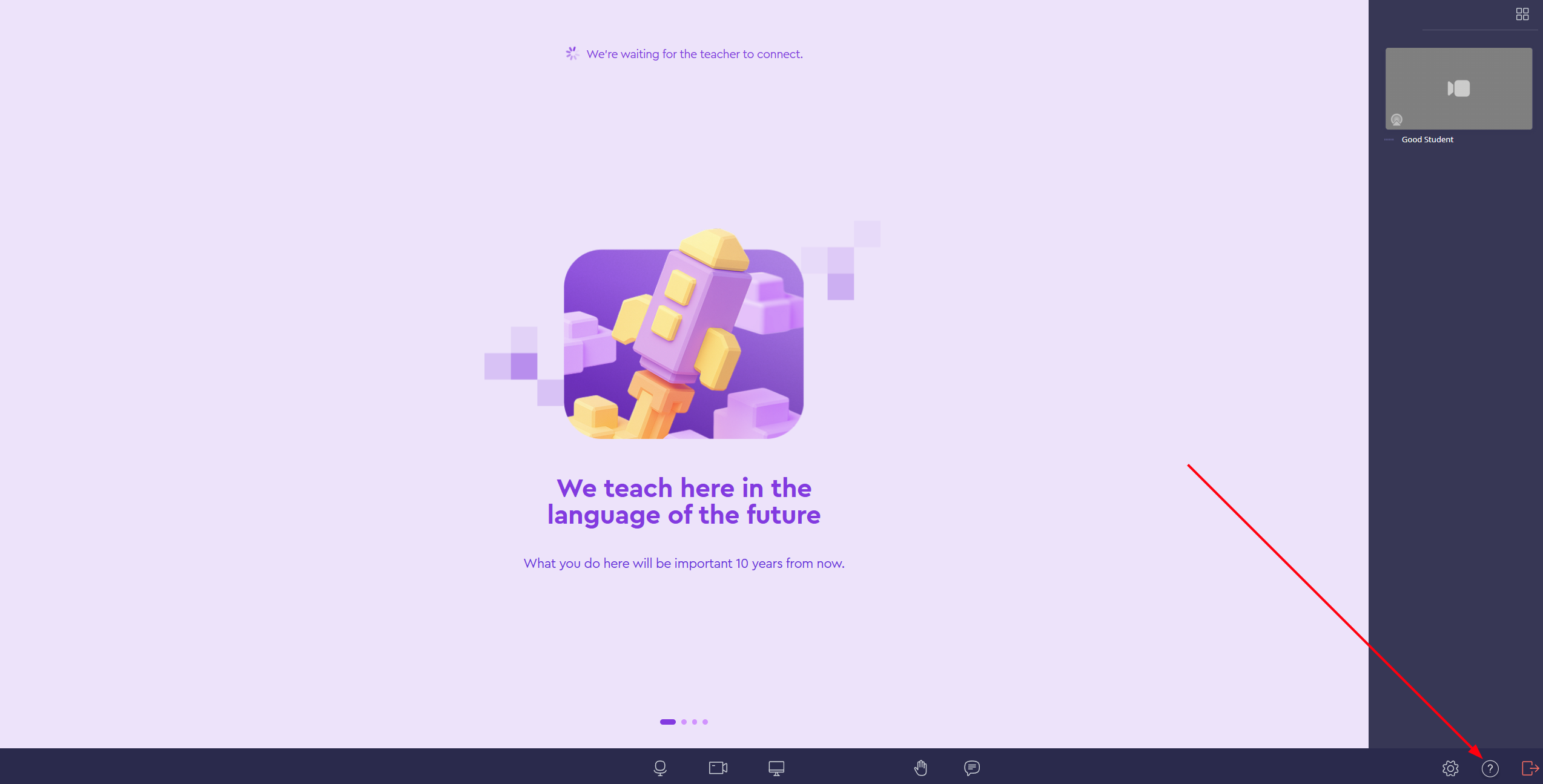
By clicking the "Help" button, you will be taken to the Knowledge Base, to a page with answers to frequently asked questions about the online room.
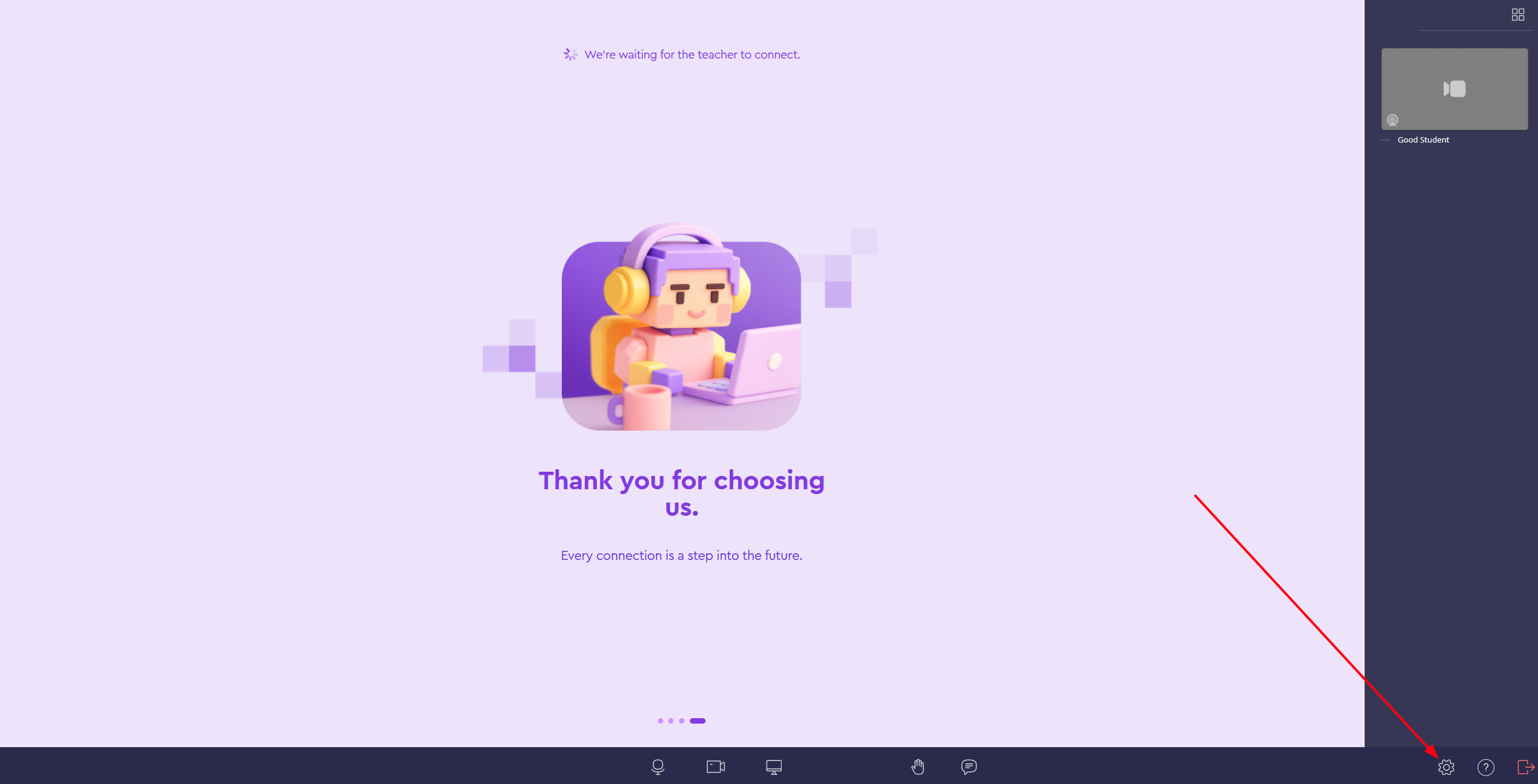
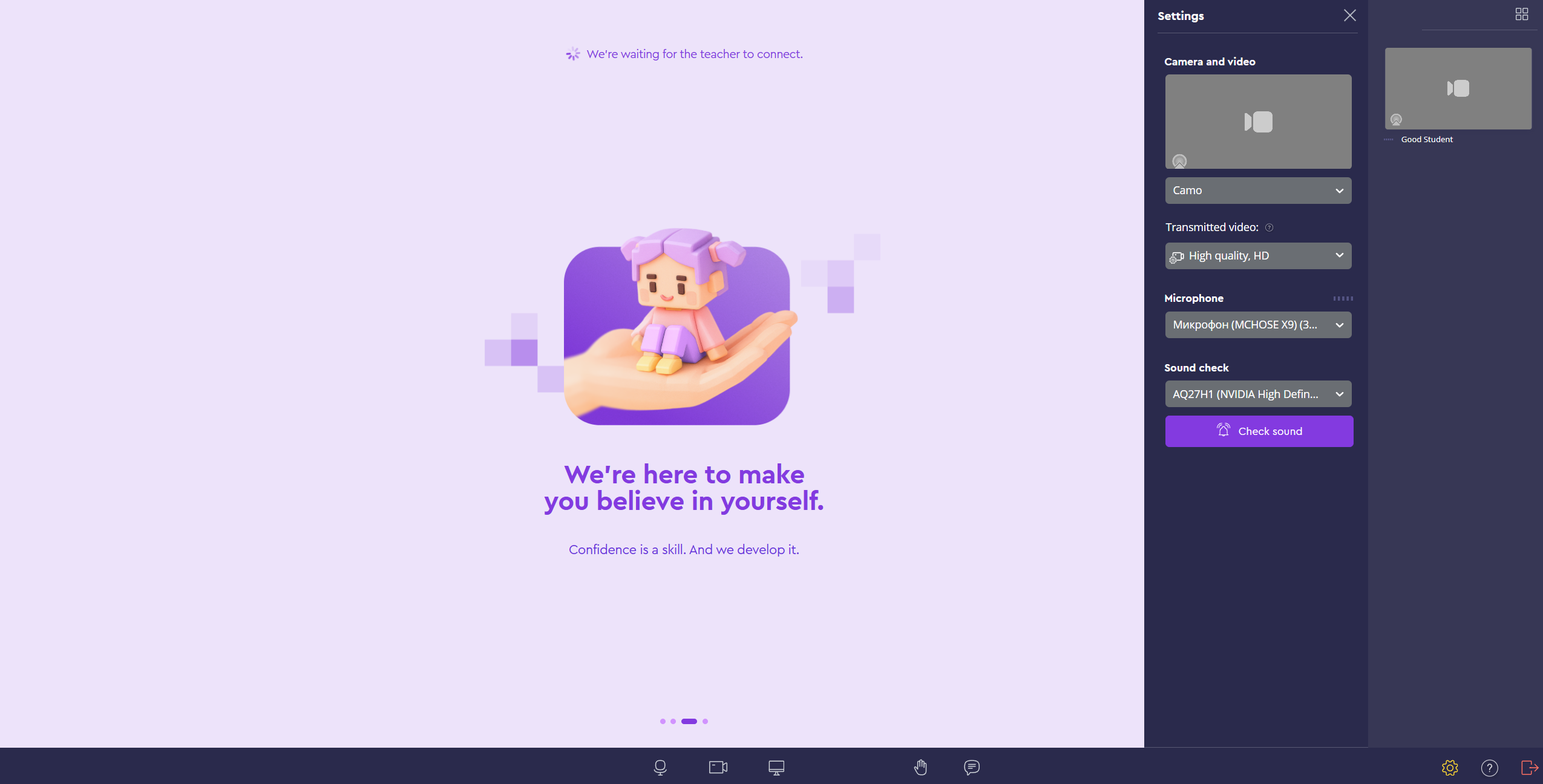
By clicking the "Open settings" button, you can check the sound and change the camera and microphone devices.
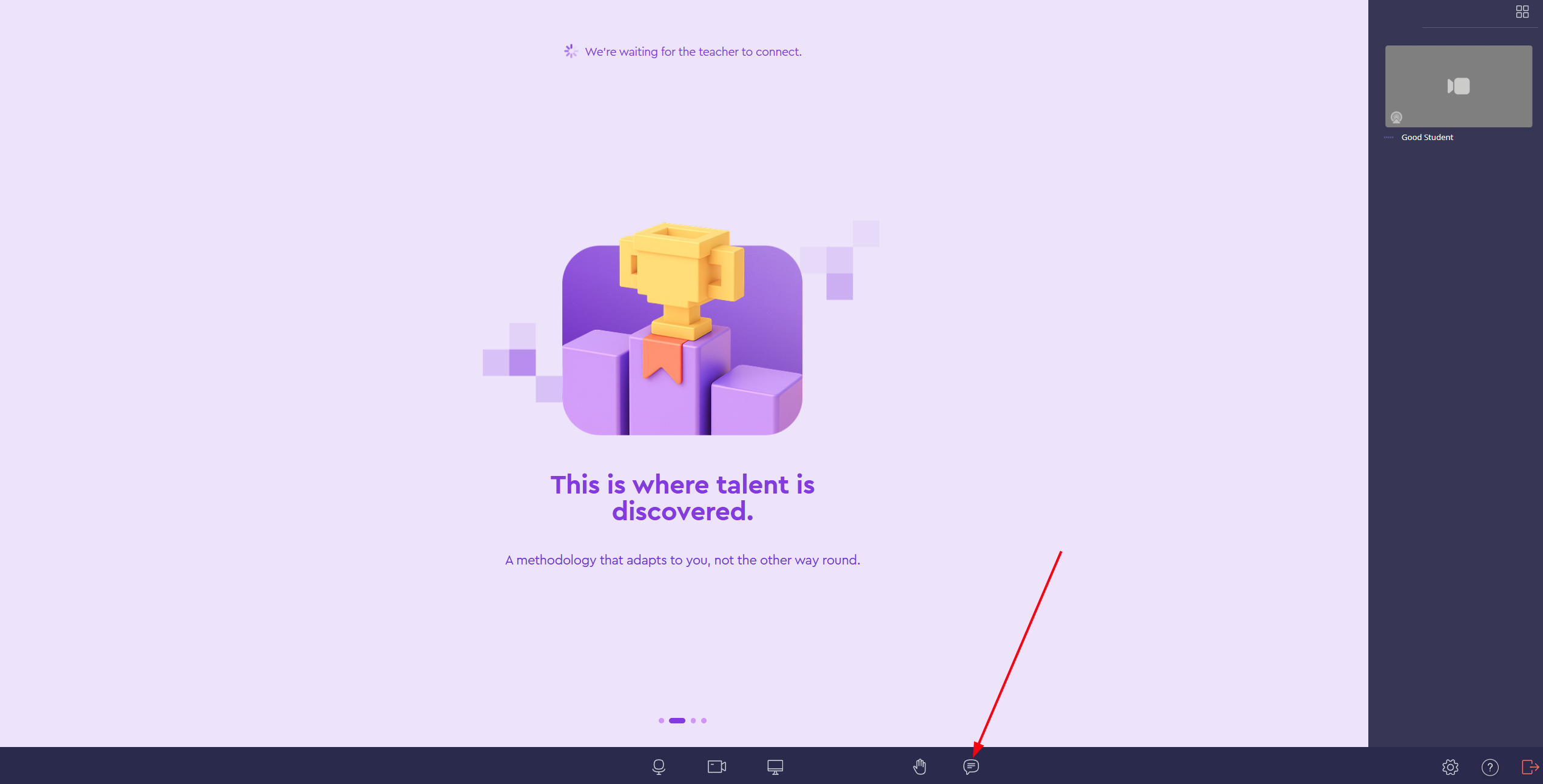
To open the chat, click on the chat icon on the bottom menu bar of the room
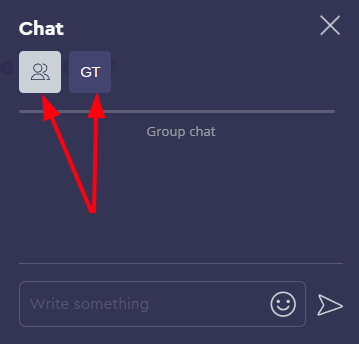
You can write messages for the entire chat or privately to the teacher by switching between the corresponding chat tabs.
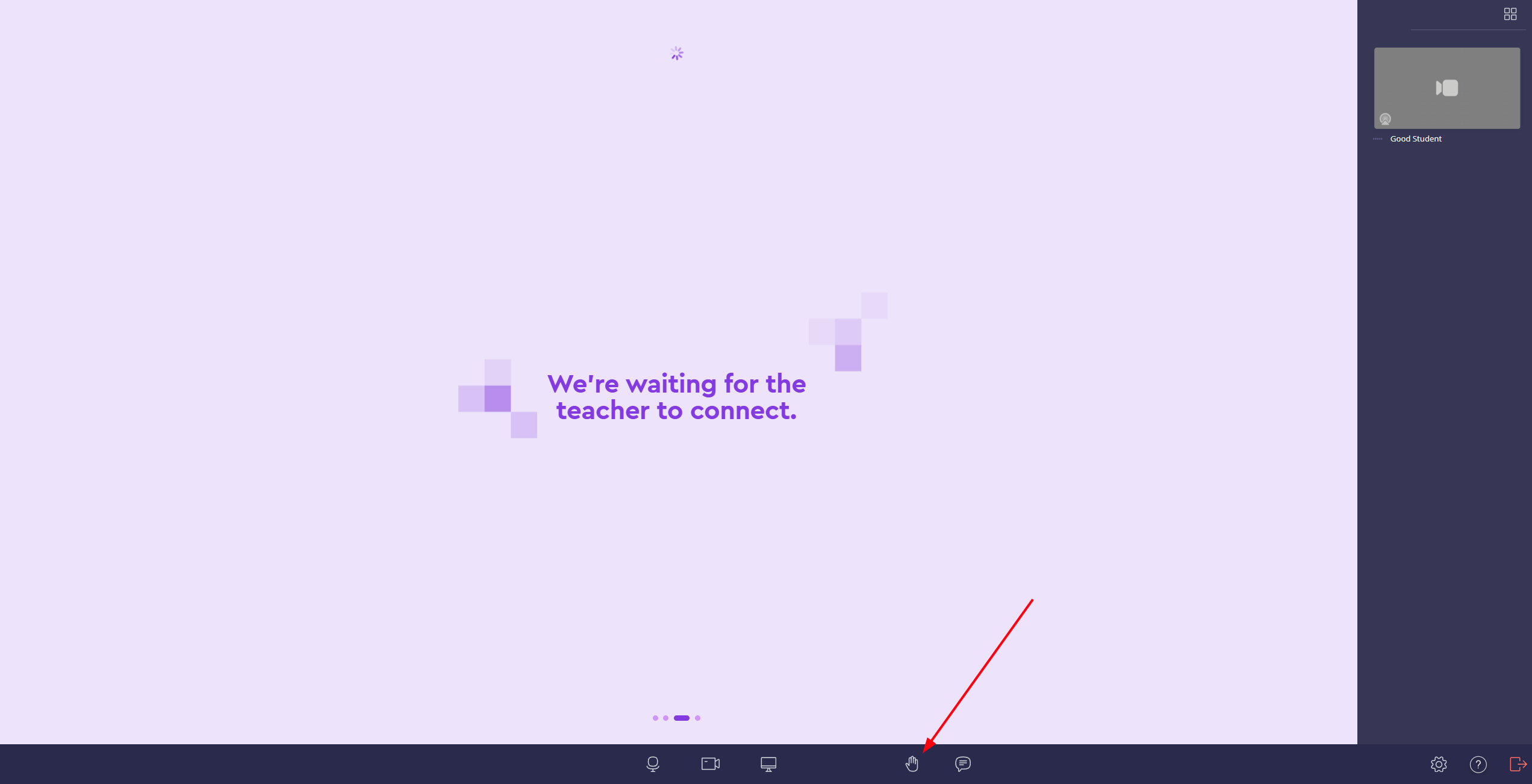
If you want to ask a question, you should use the "Raise hand" feature:
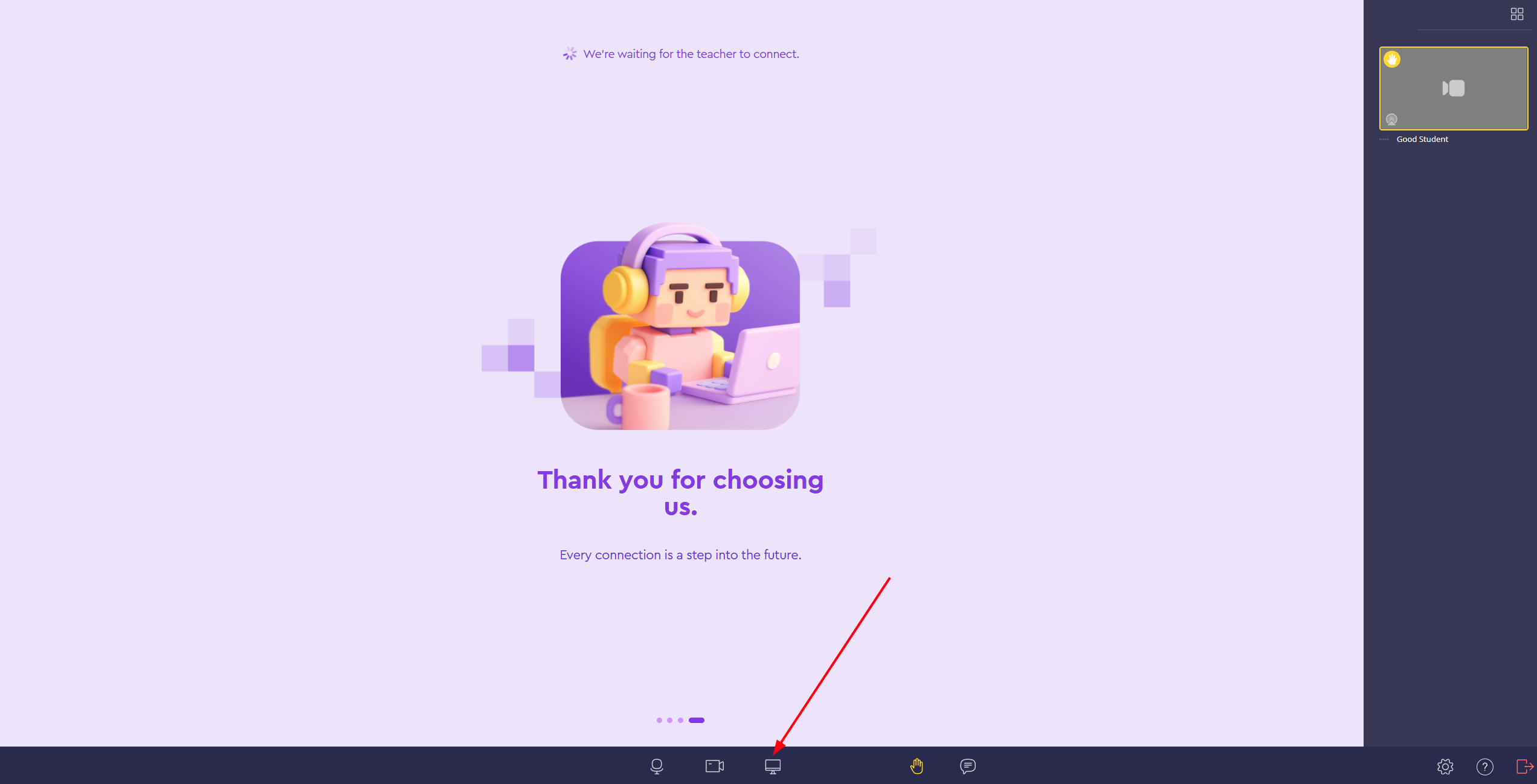
In this case, the teacher will see a yellow frame around your thumbnail, as well as a notification in the lower left corner of the screen. Raising your hand is also accompanied by a sound signal for the teacher.
The frame will disappear when you press the raised hand button again to lower it.

To leave the conference, you need to use the "Exit room" button or simply close the online room tab.

Screen sharing
To start screen sharing, click the monitor icon on the bottom menu bar of the room.
Don't you have this button or is it not working?
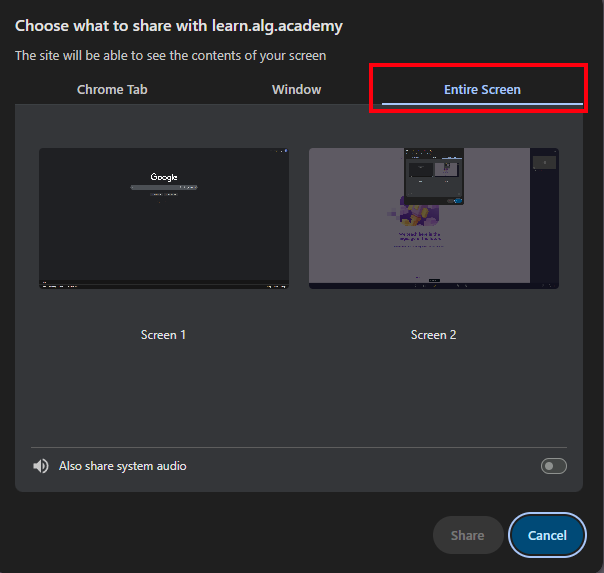
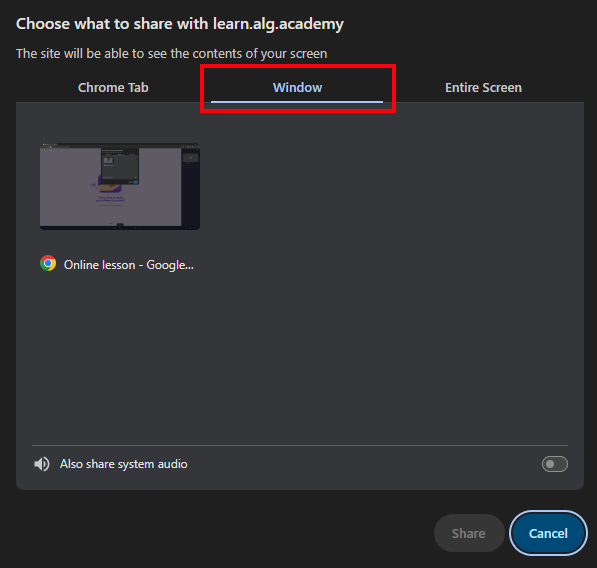
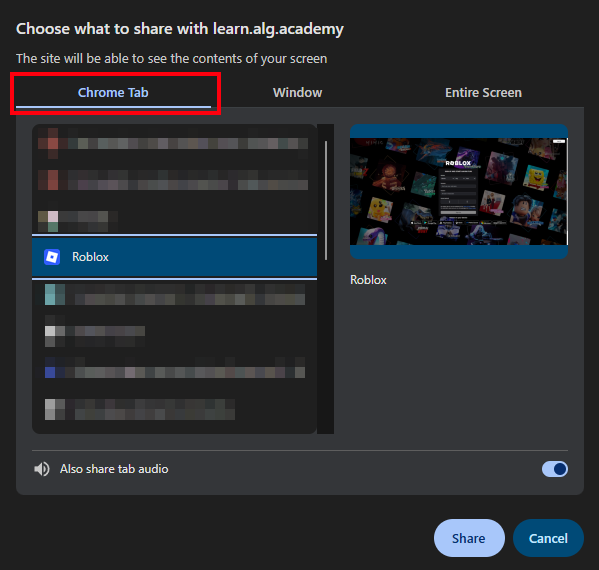
After clicking, you will be able to select which area you want to share:
To share your entire screen, go to the "Entire screen" tab, click on the window with the same name, and then click "Share".
If you want all participants to hear the sound playing on your PC, enable the toggle switch "Also share system audio".
To share a specific program window (Browser, Algo VSCode, Roblox, etc.), click on the "Window" tab, then select the screen of the desired program and click "Share".
To share a specific browser tab, select "Chrome Tab", click on the desired tab, and then click "Share".
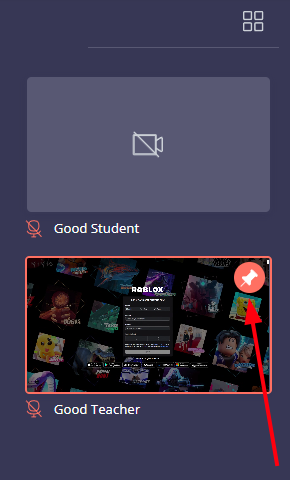
For all students, the teacher's stream is pinned to the main screen by default.
If you are experiencing difficulties with the online room, please contact Algorithmics technical support.