
Camera/microphone not working
Make sure that when connecting to the online room, it is the only tab using the microphone or camera.
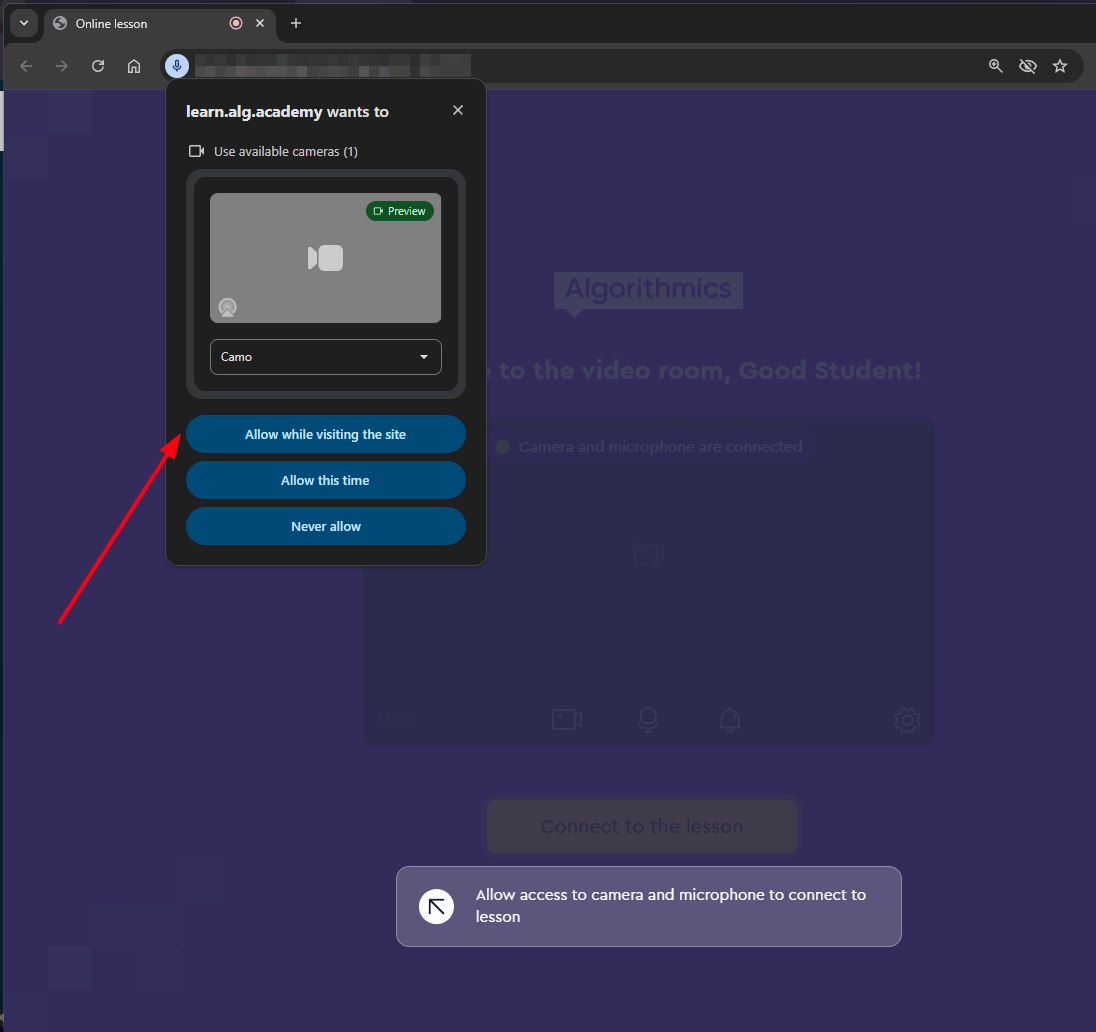
The first time you connect to the online room, the browser requests access to the microphone and camera. You must click "Allow while visiting the site."
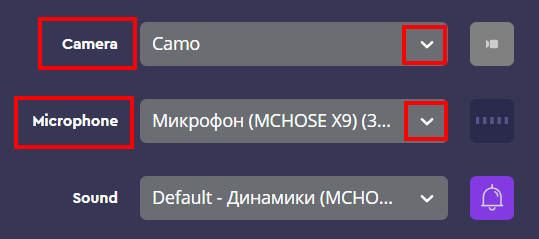
Go to the settings on the platform and check whether the correct microphone/camera is selected as the default. If not, change the device.
Make sure that the camera and microphone are working properly on your PC outside of the online room. You can do this on the website:
Try clearing the cache and opening the online room link in incognito mode in Google Chrome.
Make sure your browser is updated to the latest version.
If your computer has an antivirus enabled, it must be turned off during the online lesson.
Checking camera and microphone operation on the computer in local settings
Camera
Click on the magnifying glass located at the bottom left next to the "Start" button:

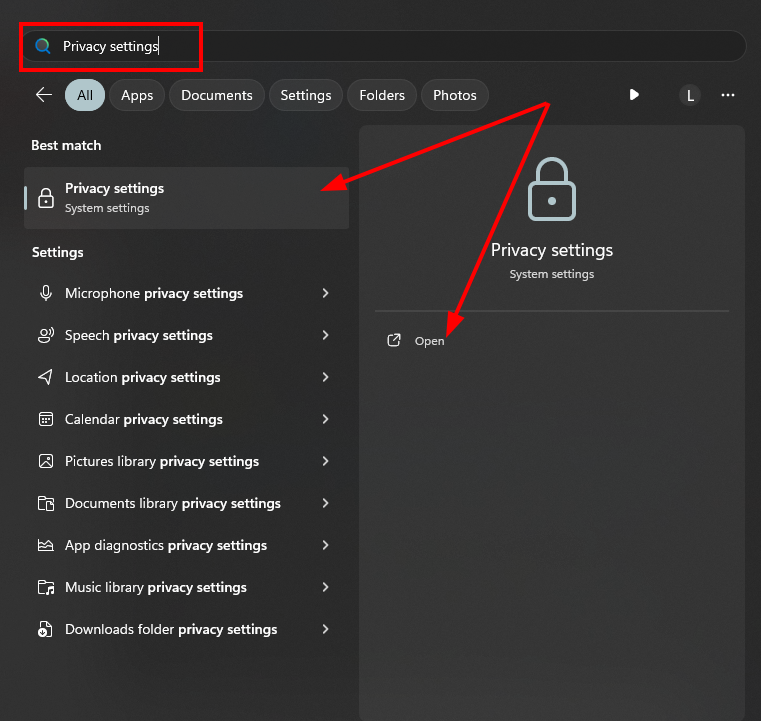
In the search bar, type "Privacy settings";
Open the section by simply clicking on it, or by clicking the Open button.
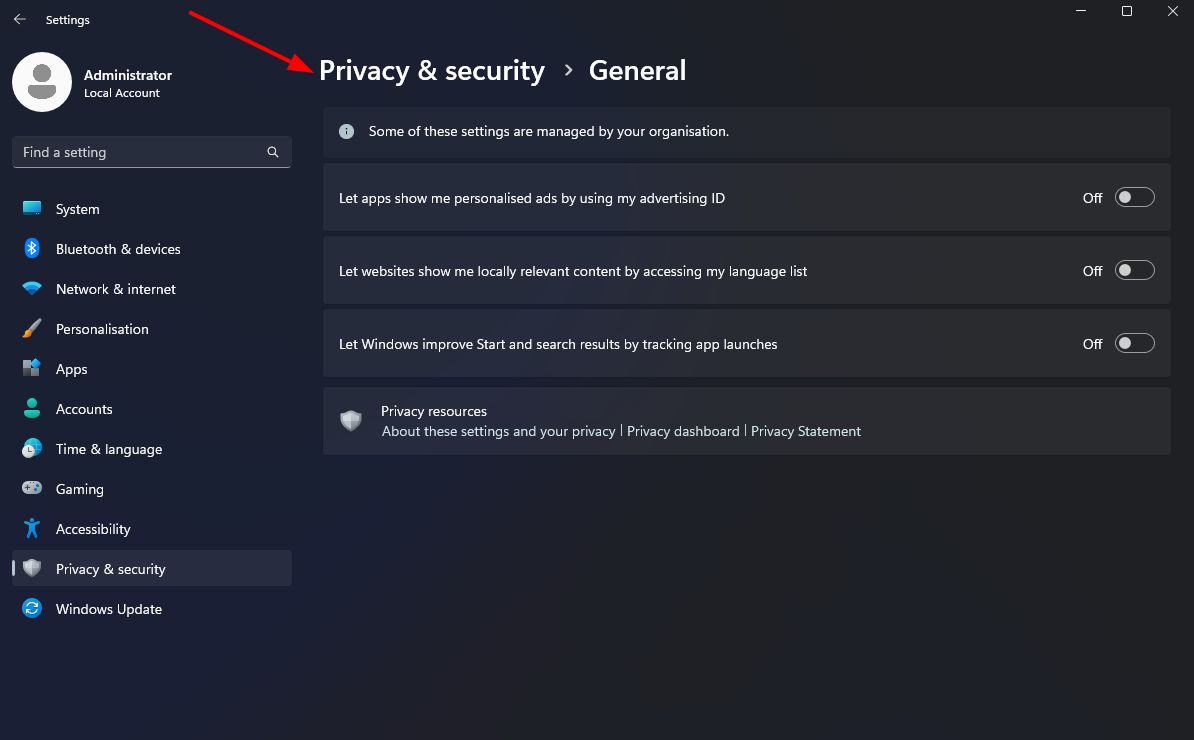
Go to all settings by clicking on Privacy & security.
Go to the "Camera" section.
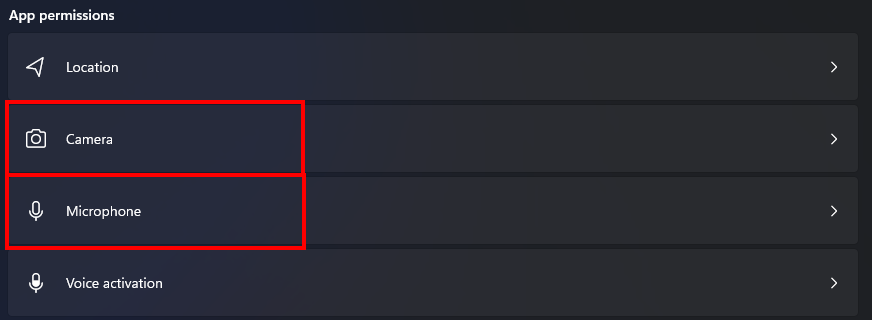
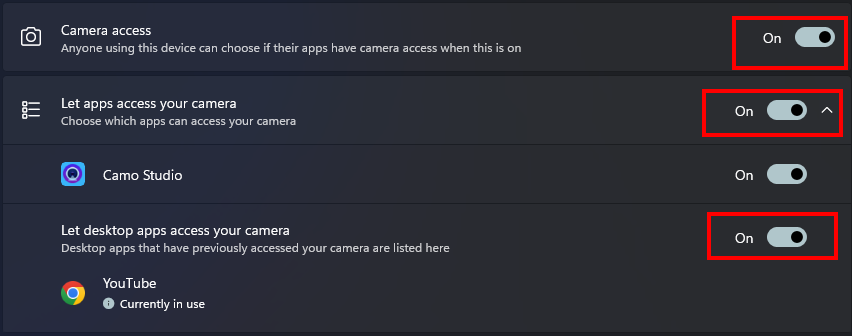
Check that the toggle switch is set to the "On" position in all the main sections.
After checking the items, do not close this tab, as it will be needed in the future to view microphone settings.
Microphone
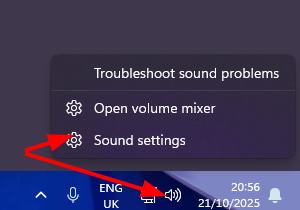
Open sound settings through the special icon on the taskbar.
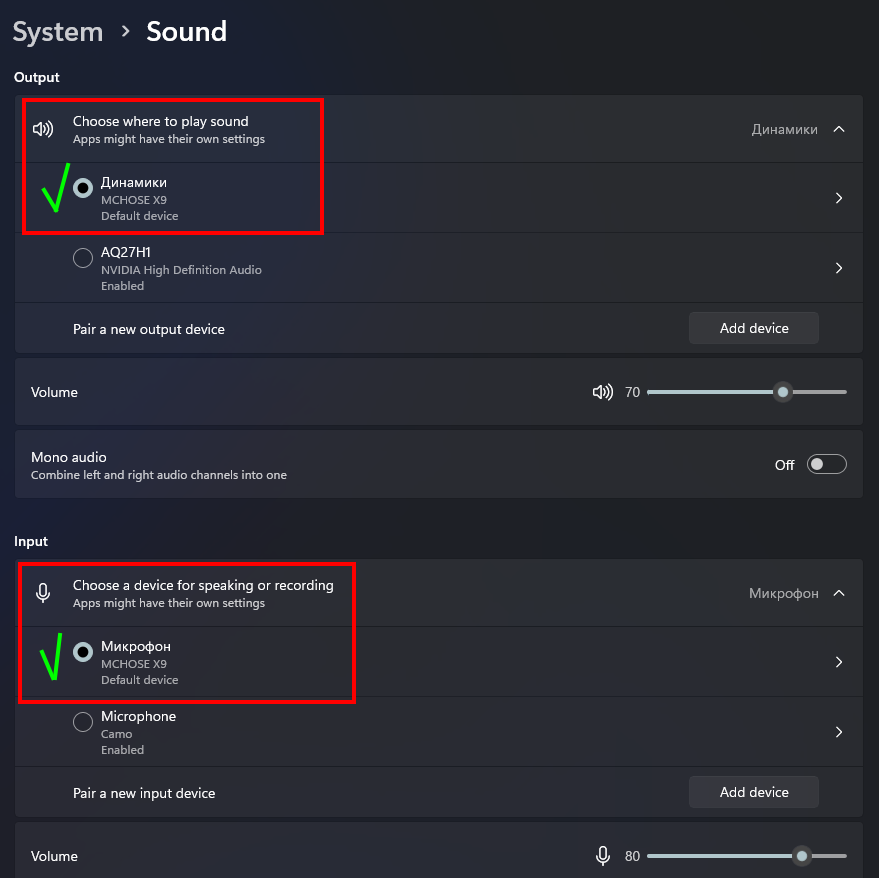
Check that the device is detected by the system and selected correctly.
Return to the Privacy settings as shown in the case of the camera.
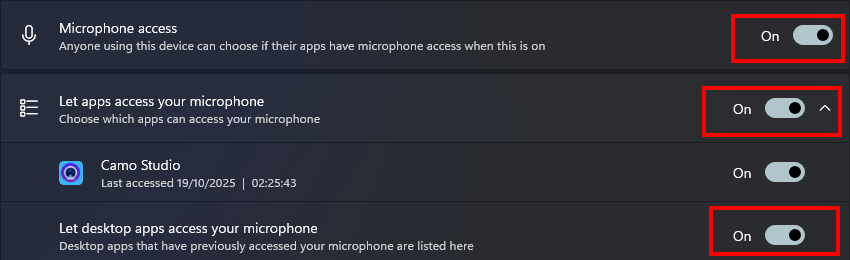
Go to the "Microphone" section
Check that the toggle switch is set to the "On" position in all the main sections.
If problems with the camera, microphone, or sound persist after completing all the previous steps, please contact Algorithmics technical support.